Skip logic & branching and Display rules: setup, troubleshooting, and use cases
Getsitecontrol forms can adapt to respondents’ input in two separate but complementary ways. Skip logic and branching controls which page someone sees next, while Display rules determine which fields, text, images, and buttons appear within a page. You can use either feature independently or combine them to create more personalized form experiences.
For example, based on how someone answers a survey question, the form can direct them to a relevant follow-up page, reveal an additional field, display a tailored message, or send them to a specific completion page.
Showing different content based on respondents’ answers makes forms more personalized. Well-designed, relevant forms are easier to complete and encourage more interaction, leading to higher engagement, more meaningful customer data, and more opportunities to convert responses into revenue.
In this guide, we’ll explore how Skip logic & branching and Display rules work, how to configure each feature, and how to use them independently or together.
Skip logic and branching
How branching decisions are made
In Getsitecontrol, branching happens when a respondent submits a form page by clicking a button. At that moment, the platform checks the branching rules set for that button and compares the answer with the defined conditions. If a condition matches, the corresponding rule is applied and the respondent is routed to the target page. If no conditions match, the form follows the default outcome and continues or finishes as expected.
Key elements of a branching form
Skip logic and branching relies on a set of elements that work together to control the form flow. Understanding these elements makes it easier to set up and troubleshoot branching forms.
Form pages
Every branch in a form leads to a page. Pages are the possible destinations that respondents can reach based on their answers. Because of this, all pages must exist before setting up skip logic.
Giving the pages descriptive names makes it easier to select the correct destinations when configuring skip logic.
Form fields
Skip logic conditions are based on form fields. Each condition evaluates the response submitted for a specific field and compares it to one or more expected response options.
Game blocks can provide a branching value too: the code of the prize the visitor wins. The gamified popup section below explains how to use it.
Fields used for branching should represent clear decision points. Structured fields such as radio buttons, dropdowns, ratings, and checkboxes are best suited for this purpose, as their responses are preset and easy to evaluate.
Field IDs and option IDs
Skip logic conditions are defined using field IDs and response option IDs rather than the labels visible to respondents. Renaming these identifiers makes it easier to set up branching rules.
Descriptive identifiers also make reports easier to understand, as they clearly indicate what each response refers to without a review of the form field setup.
Field IDs and response option IDs can be updated in the field’s settings.
Buttons
In Getsitecontrol, skip logic is configured at the button level. The button must have a Submit/Go to page action assigned, as skip logic is configured within this action’s settings.
Buttons act as the trigger for branching. Each time a respondent clicks the button, Getsitecontrol evaluates the configured skip logic and determines which page opens next. For this reason, button settings are the first place to look when reviewing or troubleshooting a skip logic setup.
Preparing a form for branching
Before defining branching rules, all the elements that make up skip logic and branching should be in place. Pages should be created and named based on their role in the flow, such as initial questions, follow-up questions, or completion pages. Fields should represent clear choices that can drive branching. Field IDs and option IDs should be renamed to reflect their meaning. Pages containing fields should feature a main button with a Submit/Go to page action assigned.
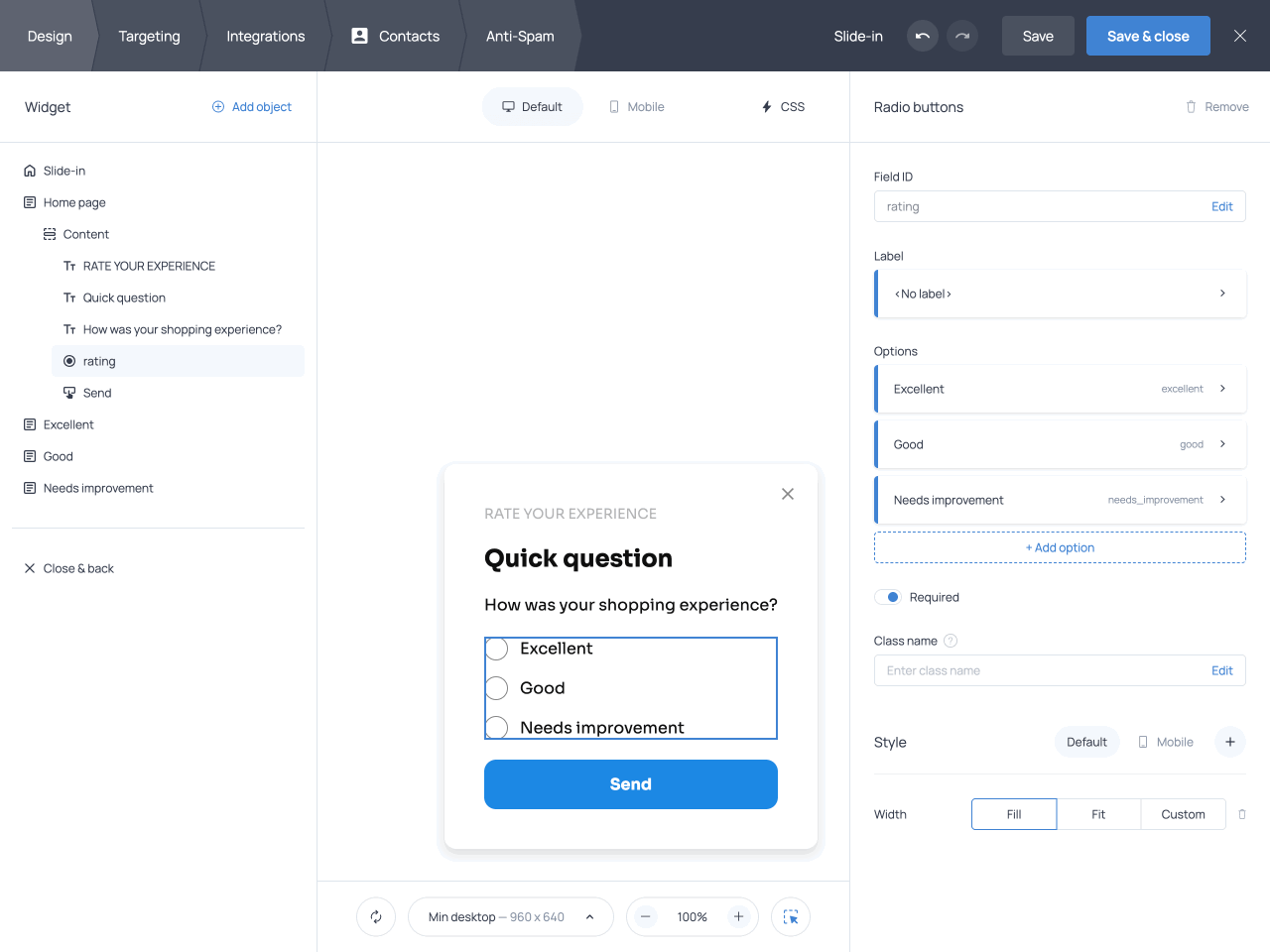
Renamed form pages, form field IDs, and response option IDs
Technical characteristics
The following technical characteristics define how Skip logic and branching works in Getsitecontrol and are important to understand before setting up branching rules.
Branching happens between pages, not within a page
Skip logic and branching determines how respondents move between form pages. It does not control the visibility of individual objects within a page. For that, you can use Display rules, which are covered in a dedicated section below.
Branching is evaluated only when a page is submitted
Branching logic is evaluated only when a page is submitted. Conditions are checked at submission, not dynamically as respondents interact with fields. This means branching decisions are always based on confirmed input rather than partial or unsubmitted responses.
Conditions can use answers from the current and previous pages
Branching conditions can use answers from fields on the current page or any previous page in the form. This lets you route respondents based on information they have already provided. Fields on later pages are not available when setting up the condition.
Defining branching rules
Branching rules define how different answers connect to different outcomes. In Getsitecontrol, branching rules are configured in the button’s Submit/Go to page action. To define custom rules, the action must be set to Skip logic and branching instead of the default Linear page order.
Each rule combines three elements: a form field, a condition that evaluates its response, and a target page that opens when the condition is met.
Multiple rules can be defined for a single button, allowing different answers to lead to different pages. Rules are evaluated in order, and the first matching rule determines the next step in the flow.
Choosing the field that drives branching
When a branching rule is based on a form field, you can select a field from the current page or a previous page. The answer to that field determines whether the rule applies.
Choose a field that represents a clear decision point for each rule. Different rules can use different fields to determine the next page.
Defining conditions and outcomes
Conditions determine which answers trigger a rule. They compare submitted responses against selected response options and decide whether a rule applies. Each condition is linked to a target page that opens when the condition is met, regardless of the original page order.
To define conditions, the default Always setting must be changed to If. The Always option routes respondents to the same page regardless of their answers. It does not apply any conditions.
Conditions use one of two operators: any of or none of. The any of operator applies when the response should match one or more selected options, while none of applies when the response should not match those options.
For example, to show a follow-up page only when a respondent selects ‘Excellent’ as a rating, use any of and select ‘Excellent’ as the matching value.
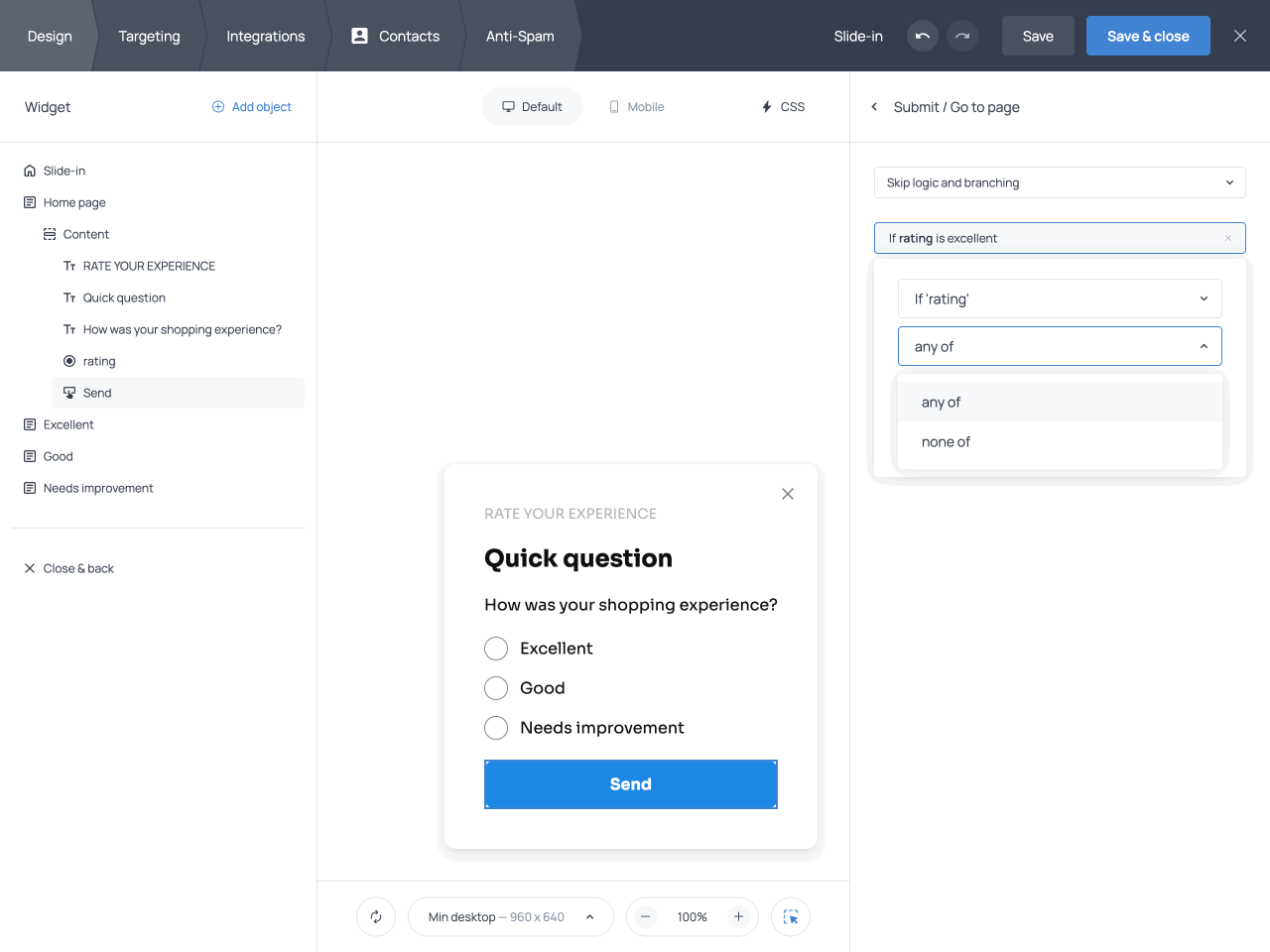
A condition using the any of operator
Rule order and fallback behavior
When a button has multiple rules, Getsitecontrol evaluates them from top to bottom. The first matching rule determines which page opens next.
The final rule acts as the fallback rule ( else ). It applies when none of the other rules match and must always be defined. This ensures that every possible answer leads to a valid outcome and prevents dead ends in the form flow.
Ending the form intentionally
Instead of leading to another page, a button can be configured to Finish the form. When this option is used, the collected data is submitted, a completion animation is shown, and the form returns to the first page.
This option is useful when no additional input is required, but it should be used intentionally, as it bypasses the remaining pages in the form.
Skip logic and branching for gamified popups
Reveal, Scratch, and Wheel blocks can also drive branching. Once a game finishes, its prize code becomes the game field’s value. Use that field in a branching rule to open the page for the selected prize.
Create the result pages and assign a distinct code to each prize. For example, route SAVE10 to a discount page and FREESHIP to a free-shipping page. Each page can explain how to use the offer and include its own shopping button. If your game includes a “Try again” outcome, give it a code and a destination too.
The game must finish before the branching action runs. For a Reveal card or Wheel started by a button, put Play the game before Submit/Go to page in the button’s action sequence. The game action waits for the result, then the branching rules choose the next page. For a Scratch card, let visitors uncover the result before continuing.
Keep an else destination for outcomes not covered by the other rules. To show the prize on the same page, use Display rules instead of branching.
Recap: setting up Skip logic and branching
- Create and rename the form pages.
- Add structured form fields that represent clear decisions.
- Rename field IDs and response option IDs for clarity.
- Define branching rules in the button’s Submit/Go to page action.
- Ensure a fallback outcome is set under else.
- Verify each branch by submitting the form with different responses.
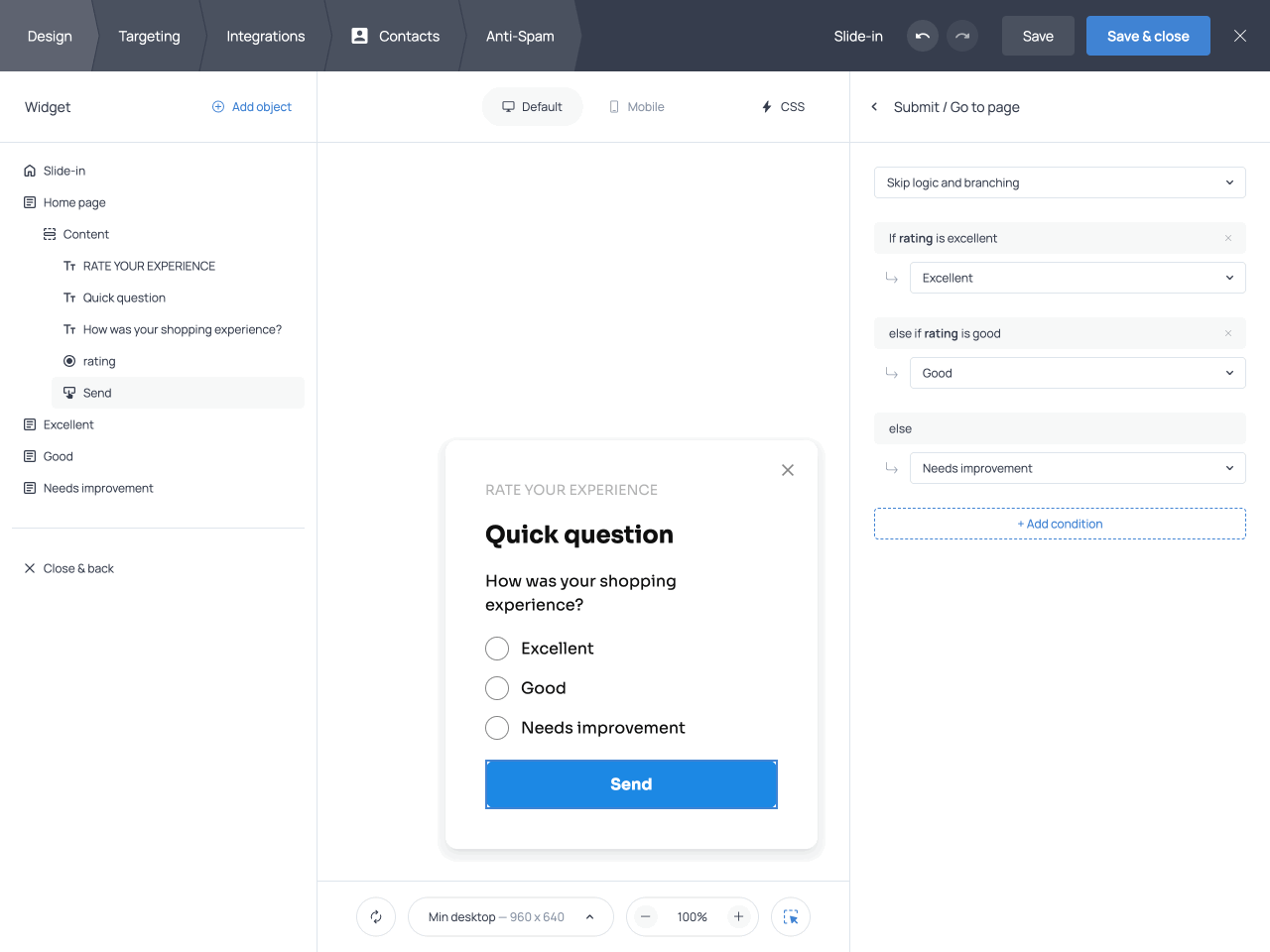
A complete Skip logic and branching setup
Troubleshooting Skip logic and branching
| Issue | Solution |
|---|---|
| The form always follows the default page order | Check the button settings on each page and confirm that Skip logic and branching is enabled instead of Linear page order |
| The wrong page opens after submission | Review the rules set in the button for the relevant field responses |
| A rule never triggers | Verify that the correct field ID and response option IDs are referenced in the rule’s condition |
| The form ends earlier than expected | Check whether the button is set to Finish instead of routing to another page |
| Logic is difficult to maintain or debug | Rename pages, field IDs, and option IDs to clearly reflect their purpose in the form flow |
Display rules
Display rules control whether individual objects appear within a widget. They are available for all form fields and content objects, including text, images, and buttons.
Unlike Skip logic and branching, Display rules do not send respondents to another page. They adapt the content of the page itself, allowing you to ask relevant follow-up questions, personalize messages, or present different calls to action without creating additional branches.
How display rules work
A Display rule consists of three parts: the source being evaluated, a comparison operator, and the value that must meet the condition. When the condition is met, the object appears on the widget.
Display rules are configured in the settings of the object they control. This means each field, text block, image, or button can have its own visibility condition.
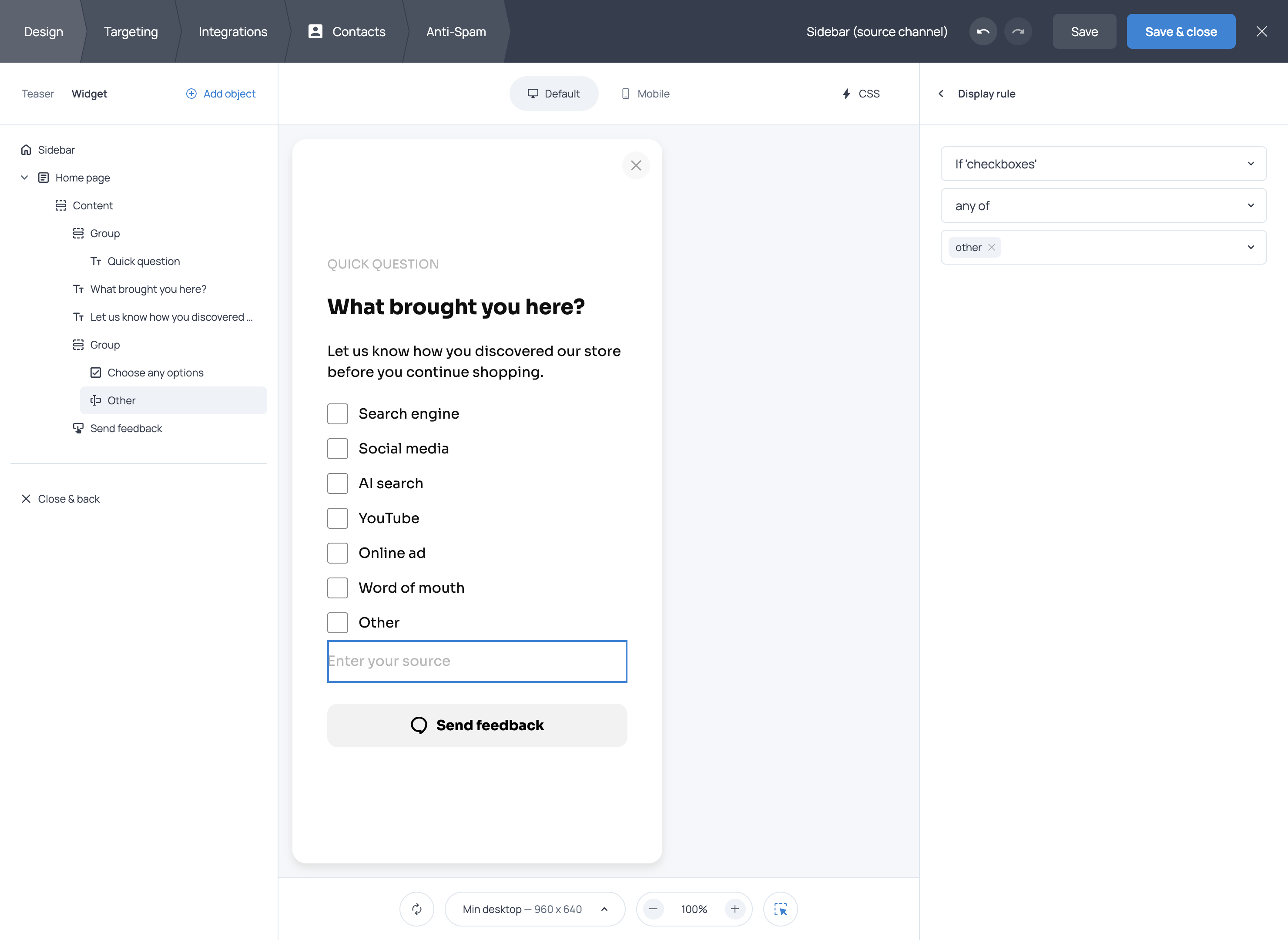
The Display rule panel with evaluated field, comparison operator, and value
Add a rule to an object
Select the object you want to show conditionally. Under Display rules, click + Add rule, choose the source field, then set its comparison and expected value. For a company-name field, select the customer-type question and the “Business” answer.
You can apply this to a form field or to content such as text, images, buttons, video, and countdowns. Apply a rule to a group when several objects should appear together, such as a product photo, its description, and a shopping button.
Combine conditions with AND or OR
Add another rule to the same object when one answer is not enough. Choose AND to require every rule to match, or OR to accept any matching rule.
For example, show a quotation field when the visitor selects “Business” AND requests more than ten items. Show a room-planning message when they choose “Living room” OR “Bedroom.” Changing the condition on the object keeps the whole setup in one place.
Show content for a winning prize
Choose a Reveal, Scratch, or Wheel field as the source, then select the prize that should make the object appear. A “Free shipping” result can reveal delivery details and a shopping button. Another result can reveal a discount code instead.
Use this when the result belongs on the current page. Use branching when the prize should lead to a different page.
Use Shopify information
For a Shopify store, the rule picker also includes Store conditions. You can use cart value, item count, cart products and variants, customer information, and the product or variant being viewed.
For example, show a free-shipping reminder while the cart is below your threshold, then show a different message once it reaches that amount. Or show an accessory image and button only when a matching product is in the cart. These are conditions on objects inside the widget; the widget’s targeting settings control whether the widget itself appears.
Rules based on form answers
A rule can evaluate the respondent’s answer to any field on the current page or a previous widget page. This lets you reveal objects based on information already provided without changing the respondent’s path through the form.
For example, if a form asks how the visitor would prefer to be contacted, a phone number field can appear when they select SMS. Similarly, an open-ended field can appear after a low rating, allowing dissatisfied respondents to explain their answer.
Rules based on API parameters
Display rules can also use API parameters passed to Getsitecontrol from your website or another system. This allows widget content to adapt based on information that was not collected through the form itself.
For example, you could display a particular message to customers on a specific plan, show a relevant button based on a visitor attribute, or hide a field when the required information is already available through an API parameter.
Comparison operators
The available comparison operators depend on the type of field being evaluated. Fields with predefined response options use operators such as any of and none of, allowing the rule to include or exclude specific answers.
Open-ended fields support more flexible comparisons, such as exact matches, numerical comparisons, and conditions based on how the response begins or ends. You can also check whether a field has any value or is undefined, which is useful when the presence or absence of an answer matters more than its content.
Using both features
Display rules and Skip logic can be used independently. Use Skip logic when different answers should lead to different pages, and Display rules when the page should remain the same but its fields or content should change.
They can also work together in more complex forms. Skip logic can direct a respondent to the most relevant page, while Display rules tailor the objects shown on that page based on current or previous answers or API data.
Use cases and strategies
Start with what should happen after a visitor answers a question or wins a prize. Branching sends them to the right page; Display rules show the relevant fields, message, or offer on the current page. The examples below show how to use both in surveys, contact forms, product recommendations, and games.
Feedback and satisfaction surveys
In feedback forms, Skip logic can determine which follow-up page respondents see. Someone who gives a low or neutral rating might be sent to a page asking what went wrong, while a satisfied respondent could see a thank-you page or review prompt instead.
Display rules provide more control over the objects shown within those pages. For example, on the negative-feedback page, selecting delivery as the source of the problem could reveal an order number field, while choosing another issue could display a different follow-up question.
Used together, the two features keep the overall survey path relevant by tailoring individual pages to each respondent. This limits unnecessary questions and helps collect more specific, actionable feedback.
Contact forms and lead qualification
In contact forms, Skip logic can route respondents to different pages based on the purpose of their inquiry. A visitor interested in purchasing might be sent to a sales qualification page, while an existing customer could be directed to questions relevant to support.
Display rules can then tailor the fields and content within those pages. On the sales page, for example, selecting a larger company size could reveal a field asking about the expected number of users. On the support page, choosing a technical issue could display a field for the affected page URL.
Together, these features let you collect the right information for each inquiry without making every respondent complete a long, generic form.
Product discovery and filtering
When visitors are exploring products or offers, a generic form can slow them down. Skip logic can guide respondents through a short series of choices and direct them to outcomes that match their needs, such as specific products, categories, or offers.
Alternatively, Display rules can provide recommendations within a single page. For example, a skincare store could ask visitors to select their primary concern, then reveal a relevant product image, recommendation, and call-to-action button for dryness, sensitivity, or blemishes.
Either way, forms become interactive discovery tools that shorten the path from interest to action and support revenue growth.
A prize wheel with different reward pages
A store offers two prizes in a welcome popup: 10% off or free shipping. After the visitor spins the wheel, branching opens the page for their prize.
The discount page shows the SAVE10 code, a copy button, and a link to bestsellers. The free-shipping page shows FREESHIP, explains the delivery offer, and links to the store’s new arrivals. Visitors see the instructions and shopping link that match what they won.
For a compact popup, keep both outcomes on one result page instead. Put each offer’s text, code, and button in a separate group, then use Display rules to show only the group matching the winning prize.
In summary
Skip logic and branching together with Display rules make it possible to create forms that adapt to each respondent instead of forcing everyone through the same flow. By showing only relevant questions, content, and outcomes, forms become easier to complete and feel more personal. As a result, respondents are more likely to engage with the forms. The forms collect more accurate and actionable responses, and perform better overall, whether the goal is collecting feedback, qualifying leads, or guiding visitors toward the right product.