Build your gift guide email
Add your gift selection, prices, and shopping links to an editable email design. Choose your audience and schedule the campaign.

A shopper choosing a gift has a different question from someone buying for themselves: “Will this suit the person I have in mind?” A useful gift guide email makes that decision easier. It narrows the selection, explains who each gift suits, and makes the price and delivery options easy to find.
You can organize a gift newsletter around a budget, a shared interest, an occasion, or the time left to order. Below are ten approaches, live email designs you can edit in Getsitecontrol, and copy you can adapt for your store. There is also a Shopify section for gift guides that pull products from a connected catalog.
Choose one organizing idea before choosing the products. “Gifts for the friend who loves to cook” gives you a reason to include a serving bowl, a cookbook stand, and a set of spices. “Our holiday favorites” can become a miscellaneous catalog unless you explain what holds the selection together.
| Gift guide format | What the reader needs | Useful detail to include |
|---|---|---|
| By interest | A gift that feels personal | Who it suits and how they would use it |
| By budget | A choice within a spending limit | Current price and a matching collection link |
| By occasion | Something appropriate for the moment | Presentation, personalization, and gift-message options |
| By delivery window | A gift they can still get in time | Region, service, ordering cutoff, and available alternatives |
Start with a selection small enough that you can explain every item. Three to six products is a useful first layout to try, not a universal limit. A short email can introduce three categories and send readers to a fuller guide; a considered purchase may need a larger photo and more explanation for each product.
Include a product name, a relevant image, its price, a reason to choose it, and a direct route to the product or collection. Multiple shopping links are helpful when they lead to distinct choices. Give them specific labels such as “Shop gifts under $50” rather than repeating “Learn more” beneath every category.
The person receiving the email is the buyer, not necessarily the gift recipient. A customer's previous purchase can help you choose an audience, but it does not tell you who they are shopping for this time.
Translate product features into something the buyer recognizes about the recipient: a travel mug for the friend who always takes the early train, a reading light for the late-night reader, or a small tray for someone who likes a tidy desk. This is more useful than a category labeled “Gifts for everyone.”
The Craighill design gives each object its own photograph, price, and explanation. A keyring, an eyewear stand, a puzzle, and a catchall become distinct choices rather than interchangeable product tiles. Use that structure for a gift edit with a short “Good for…” line beneath each item.
The sample opens with an expiring cashback offer. Replace that introduction with your gift-guide promise unless you are actually running such an offer. For a non-promotional version, “Four gifts for people who appreciate useful things” can introduce the same layout without a discount.
A budget-led gift guide removes a common source of friction: opening a promising collection and discovering that everything costs more than intended. Choose price bands that suit your catalog, then make each link lead to products within that band.
For a small range, build one email around a single ceiling, such as “Five gifts under $40.” For a larger range, use two or three groups with one representative image each. Prices should reflect the purchasable version shown: a headline based on the cheapest variant is unhelpful if the pictured bundle costs more.
You can adapt the product-and-price rows above to this format. Keep the budget in the section heading as well as the product price, and review the destination collection before sending. If gift wrapping or shipping costs extra, make those options clear in the buying journey.
Fragrance, tea, skincare, and home textiles often need more explanation than a product name. Describe the difference between options using a consistent set of details. A candle guide might compare scent notes and mood; a tea guide could compare flavor and caffeine content.
The APOTHEKE design uses “Notes” and “Feels” beneath its fragrance photography. That repeated structure lets a gift buyer compare three scents without already knowing the range. Adapt it into a guide for a candle enthusiast, a housewarming gift, or a host who enjoys a particular atmosphere.
Keep the language specific. “Smoky and woody” helps someone decide; “the perfect scent” does not. If choosing still feels difficult, add a discovery set or a gift card as an alternative. Replace the template's Monday and studio-class content with details relevant to your own campaign.
A set answers another question: “Will this feel like enough?” Show what arrives together, how the recipient can use it, and whether it includes packaging. A breakfast box could contain coffee, a mug, and a small treat; a desk set might pair a notebook with a pen.
The Ayoh design shows a build-your-own bundle followed by individual flavors and customer quotes. Its structure is useful when shoppers can assemble a gift: introduce the finished set, explain how many items to choose, and let them explore the options.
Connect the buttons to your existing bundle-building page or product options. The email layout itself does not create bundle pricing or a selection tool. Replace the sample quotes with genuine reviews of your products, or use your own descriptions.
For a fixed set, a product slideshow can introduce the individual items in a single animation. This example layers photographs of coordinated summer accessories to introduce a gift selection. Use matching product photography and link the animation to the featured set.
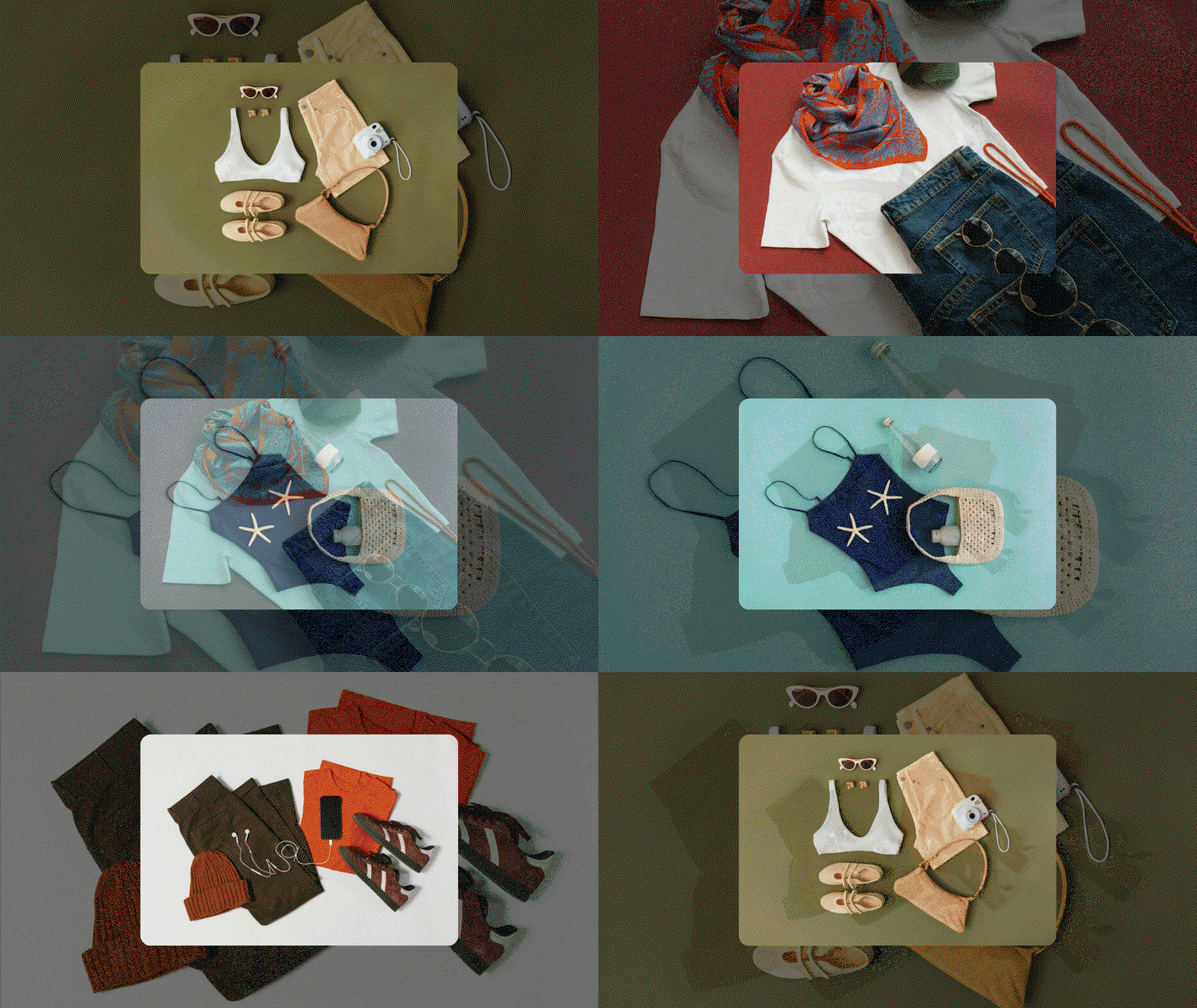
Age can be a useful first filter, but interests make the choice more meaningful. A guide could offer “For little builders,” “For curious readers,” and “For outdoor explorers,” with age suitability shown on each product. Use the manufacturer's actual age guidance, not an age you inferred from a photograph.
Parents and relatives may also need to know whether batteries, tools, or adult assistance are required. One line of practical detail can be more persuasive than a long list of developmental benefits. Link to the exact product page for materials, safety information, and the contents of the box.
For a collection-based email, use one representative image and a clear action per interest. You do not need to show the entire range in the inbox. This keeps the guide manageable while giving readers a useful next step.
Self-gifting works when the selection has a reason to exist: a quieter evening, a more comfortable reading corner, or a hobby someone wants to return to. Give it a separate message or section instead of treating it as the fallback for readers who are not buying for others.
The Loftie design focuses on one lamp, showing how it fits into an evening and morning routine. Its large image and short feature checklist offer a useful model for a one-product gift email. Replace the sample claims, trial terms, and stock history with information you can support for your own product.
A single featured gift can carry the whole email when the story is strong. Add one complementary item only if it helps complete the idea; more products are not automatically more helpful.
The same collection can support several holidays, but the buying question changes. A host gift needs to be easy to bring along. A Mother's Day gift may need a message card or engraving. A Valentine's gift might center on something the recipient can enjoy with the buyer.
For a winter campaign, a “Gifts for the host” edit can sit alongside a budget edit and a last-ordering-date reminder. Our holiday newsletter ideas cover how those emails fit into a wider seasonal plan; Christmas promotion ideas cover the offers and website campaign.
For parent-focused occasions, choose products around interests and practical details rather than relying entirely on gendered categories. See the Mother's Day marketing guide for a campaign calendar and the jewelry email guide for personalization and sizing questions. For February, use our Valentine's Day email examples to build the sequence around your gift range and fulfillment dates.
Show how the gift fits into the recipients' home: a table set for shared dinners, a vase that works in a small space, or a serving piece for people who like hosting. Give dimensions, materials, and care information on the destination page so the buyer can judge suitability.
The ALESSI design introduces a table setting through a styled scene, then explains the collection. Adapt that approach to a wedding edit: show the objects together before offering individual pieces or a set. It gives the buyer a picture of the gift in use.
A decorative “For the newlyweds” heading made with a wedding font generator can also carry onto a matching gift-card design. If your store offers personalized gift tags, show a sample initials layout created with a monogram maker. Keep product names and prices as normal text, and offer only the customization your store can fulfill.

Gift presentation can settle a decision between otherwise similar products. Photograph the closed box and the gift inside, explain what is included, and show where the buyer can add a message. If wrapping is optional, state its price or link directly to the option.
For a neat reveal, use two aligned photographs in a before-and-after GIF: the unwrapped item and the finished gift. Keep the camera angle and crop consistent so the change is easy to follow. This works particularly well for engraving or packaging; it is less useful when the two pictures show unrelated products.
A small slideshow GIF can show the box, the contents, and the message card. Repeat the important details in the email text, and compress the GIF before using it. The animation should clarify what arrives, not hide the product until the final frame.
Once a shipping cutoff passes, change the selection. A guide that continues promoting ineligible products creates more work for the customer. Feature local pickup, ready-to-ship items with an applicable service, or digital gift cards only when your store offers them.
The shipping-update template provides a straightforward headline, an animated text strip, and room to explain the delivery details. Rewrite its generic “faster shipping” message as a specific ordering window, including the region and service.
For a gift-card email, explain the available amounts, who receives the email, delivery timing, and how redemption works. Avoid promising instant delivery unless that is how your store actually processes gift-card orders.
For a Shopify store, Getsitecontrol's email editor can populate product cards and slideshows from your connected catalog. You can use a specific collection for a curated gift edit, bestsellers for popular picks, or a recommendation source when the campaign calls for personalization.
The template below combines a slideshow with bestselling products. For a themed guide, select a gift collection as the source where appropriate and check each dynamic block separately. A “Gifts under $50” heading needs a collection that actually satisfies that promise; a generic bestsellers feed will not establish a budget rule for you.
The sample product placeholders are filled from the connected Shopify store. Preview the email with your own catalog, confirm the product links and prices, and make sure the selection is suitable for a gift buyer. Recommendations based on someone's own purchases may need a different introduction from a guide for their friends or family.
Use a scheduled broadcast for the shared launch of a gift guide. A welcome sequence can deliver a promised guide after signup, and a post-purchase follow-up can suggest a relevant complement later. Keep those individual follow-ups separate from the seasonal calendar so a buyer does not immediately receive another “Still choosing?” campaign.
Put a signup invitation on the gift collection or guide page while shoppers are considering their options. Tell visitors what they will receive: the guide, new gift edits, delivery reminders, or a specific signup offer. A vague newsletter invitation gives them less reason to subscribe.
The popup below pairs an email field with a discount invitation. Adapt it to your gift campaign and make the offer match the welcome email. If you are only delivering a guide, replace the discount wording rather than leaving an incentive you do not provide.
If you collect an optional preference such as “Cooking,” “Home,” or “Outdoors,” use it to organize follow-up messages. Keep the form short, and give people without a preference a useful general edit. Our email signup popup guide covers the offer and display rules; contact management covers fields, segments, and email activity.
Make the selection clear before adding personality. Pair the subject with preview text that contributes another useful detail, such as the price range or ordering window.
| Subject line | Preview text |
|---|---|
| Good gifts, all under [amount] | A small selection for [recipient or interest]. |
| For the friend who always hosts | Thoughtful additions to their next gathering. |
| Three ways to make their morning | Our coffee, tea, and breakfast gift edit. |
| The gift set you can build yourself | Choose [number] favorites and we will [packaging detail]. |
| A little something for you, too | A gift edit for your own [routine or interest]. |
| For the newlyweds and their first home | Useful pieces, considered details, and gift options. |
| Your [holiday] gift shortlist | Browse by interest, budget, or the time left to order. |
| Engraved gifts: order by [date] | The production cutoff for [eligible range and region]. |
| Still choosing? These gifts can [delivery option] | Order by [time] using [service]. |
| Let them choose their own favorite | Gift cards in [amounts], delivered by [method]. |
Use the subject line generator for alternatives once the offer and audience are clear. Keep the deadline, discount, and product claim accurate in every variation.
Replace the bracketed details and link the action to the promised selection. These are original copy examples, so you can adapt the tone without retaining another brand's claims or offers.
Gifts under [amount], chosen with care
PreviewUseful, thoughtful picks for [recipient or interest].
Thoughtful gifts under [amount]
A good gift does not need a long search. We have selected [number] ideas for [recipient], all under [amount].
Start with [item] for [reason], choose [item] for [reason], or explore the full edit to compare the options.
You will find current prices, gift-packaging details, and delivery information on each product page.
Shop gifts under [amount]The [Store] team
Put together their [occasion] gift
PreviewChoose [number] favorites from [eligible range].
Build a gift around what they love
Choose [number] items from [collection] and build a gift around what they enjoy. We will [explain the actual packaging service].
Use the code below for [offer] through [date, time, and time zone]. [State minimum spend and exclusions.]
Explore the flavors, finishes, or styles, then make your selection on the bundle page.
Build a gift set With thanks,
[Store]
Order by [date] for [occasion] delivery
PreviewFor [eligible products], sent to [region] with [service].
Gifts that arrive in time for [occasion]
There is still time to choose a gift from [eligible collection]. Place your order by [time and time zone] on [date] and select [service] at checkout for [accurate delivery estimate or commitment].
This window applies to [scope]. Personalized and made-to-order items have [separate cutoff or availability].
After that window closes, [gift cards or pickup] will remain available under the terms shown on our website.
See eligible gifts[Store]
Work backward from the date the gift is needed, including production and delivery time. Launch while people still have time to compare; send the more specific edit when it answers a new question; reserve the final reminder for an actual cutoff.
| Stage | Email purpose | Who should receive it |
|---|---|---|
| Before the shopping window | Introduce the guide and the available categories | Subscribers for whom the occasion or range is relevant |
| While there is time to choose | Show a focused budget, interest, or gift-set edit | A matching segment, including relevant guide clicks |
| Before production or shipping closes | Explain the remaining ordering window | Relevant shoppers who have not already completed that purchase |
| After physical-gift cutoffs | Offer an available digital or local alternative | Subscribers who can use that option |
For holiday-specific schedules, use the linked Christmas, Valentine's, and Mother's Day guides. For weddings and birthdays, an individual event date matters more than a universal “wedding season” send date.
You can use a scrolling text GIF for a short “Gift wrapping available” banner. A countdown GIF can introduce a gift reveal, but an exported animation repeats a fixed sequence; it does not track a live shipping deadline. For an actual expiry, configure an email countdown and keep the date and time in text. The countdown duration guide helps you plan a fixed animation; the email editor guide covers the built-in countdown object.
Measure which categories and products receive clicks, then review orders, unsubscribes, and delivery results alongside them. If a budget link attracts interest but few purchases, inspect its selection, availability, and delivery costs before changing the email subject. Use those findings to make the next edit more useful.
A gift guide email is a curated selection that helps subscribers choose a present. It usually groups products by recipient, interest, budget, or occasion and links to the relevant products or collections.
Start with a selection you can explain clearly. Three to six products is a practical layout to try, while a category-led email can show fewer images and link to a fuller guide. The right length depends on how much help the buyer needs.
No. Clear recommendations, gift packaging, personalization, or useful delivery information can give the email a purpose. Include an offer only when it fits the campaign and your margins.
Yes. Add your own images, descriptions, prices, and links to an editable email design. Dynamic Shopify product feeds require a connected Shopify store.
Send the main guide while customers have time to compare products and receive the order. Work backward from production and shipping cutoffs, then use relevant follow-ups for a focused edit or the remaining delivery window.
Jack Hayes covers onsite marketing, email campaigns, and ecommerce growth at Getsitecontrol. His guides connect popups, personalization, and automated emails into practical strategies for turning visitors into subscribers and customers into repeat buyers.
You’re reading Getsitecontrol blog where marketing experts share proven tactics to grow your online business. This article is a part of Email marketing section.
Try email marketing, free
Grow your list with free popups, send 2,000 emails for free.
Get started →Subscribe to get updates
Get beginner-friendly tips for growing your online business.