Email deliverability: safeguards, list quality, sending strategies, and sender reputation
Deliverability is the ability of your emails to reach recipients’ inboxes instead of landing in spam or other folders. Mailbox providers evaluate several factors when deciding where your emails should appear, including how your domain is authenticated and perceived (sender reputation), who receives the emails, how consistently they are sent, and how recipients interact with them. Together, these signals help mailbox providers determine whether your messages are relevant and expected, influencing their placement in the inbox, spam, or promotional folders.
Getsitecontrol provides built-in features to help you improve your sender reputation and control the other factors influencing inbox placement. Some of these features act as safeguards across all email marketing activity, preventing issues such as high bounce rates, invalid or bot-generated contacts entering your list, and broken links in emails. Other deliverability features are designed specifically for broadcasts and automations. When used correctly, these features help you build, improve, and maintain consistent inbox placement over time.
Understanding sender reputation
Sender reputation is one of the primary factors mailbox providers evaluate when determining whether your emails should reach the inbox. It describes how trustworthy your domain appears based on your sending practices and how recipients respond to your emails over time. A domain’s reputation is not a visible score that senders can access directly. Mailbox providers calculate it internally using their own algorithms. The exact criteria are not publicly disclosed, and reputation can vary across different providers. For this reason, senders can only estimate their reputation by observing signals such as bounce rates, engagement, and complaint levels.
Mailbox providers verify your identity through authentication records, which confirm that your emails are legitimately sent from your domain. They also analyze sending patterns: how often you send emails, how many you send at once, and whether your activity is consistent or irregular.
Bounce rates play a key role: sending emails to invalid addresses suggests poor list quality and can quickly damage your reputation. Recipient behavior is just as important. Emails that are opened and clicked signal that your messages are relevant and expected, while emails that are ignored, unsubscribed from, or marked as spam indicate the opposite.
These signals accumulate across all your email activity. Consistent sending behavior, clean contact lists, and strong engagement gradually build a positive sender reputation. Repeated negative signals, on the other hand, reduce trust and lead to your emails being filtered into spam. To help you track these signals, Getsitecontrol provides a built-in sender reputation indicator.
Sender reputation in Getsitecontrol
Getsitecontrol’s sender reputation indicator evaluates several key metrics related to sending practices and recipient behavior. By tracking these metrics, you can quickly identify issues that may harm your sender reputation and take appropriate measures. The reputation indicator is based on the following factors.
Bounces
A bounce occurs when a mailbox provider rejects an email and it cannot be delivered to the recipient. High bounce rates indicate that emails are being sent to invalid or outdated addresses, which suggests poor list quality and can harm your sender reputation. To protect the reputation, Getsitecontrol automatically stops sending emails to addresses that bounce back. A bounce rate of 5% or higher is considered critical.
Spam complaints
Spam complaints occur when recipients mark your email as spam. This is one of the strongest negative signals for mailbox providers, as it indicates that recipients consider the message unwanted and take the time to report it. For this reason, even a spam complaint rate of 0.2% is considered critical.
Unsubscriptions
Unsubscriptions occur when recipients choose to stop receiving your emails. While unsubscribing is a normal part of email marketing, a high unsubscribe rate indicates problems with content relevance, frequency, or targeting. An unsubscribe rate of 1% or higher is considered critical.
Engagement
Engagement measures how recipients interact with your emails, primarily through opens and clicks. Higher engagement indicates that recipients find your emails relevant and valuable, which contributes positively to sender reputation. Low engagement, on the other hand, may signal that emails are not reaching the right audience or that content needs improvement.
Recency
More recent email activity has a stronger influence on reputation because it better represents your current sending behavior. This means that improvements in sending practices can positively affect your reputation relatively quickly.
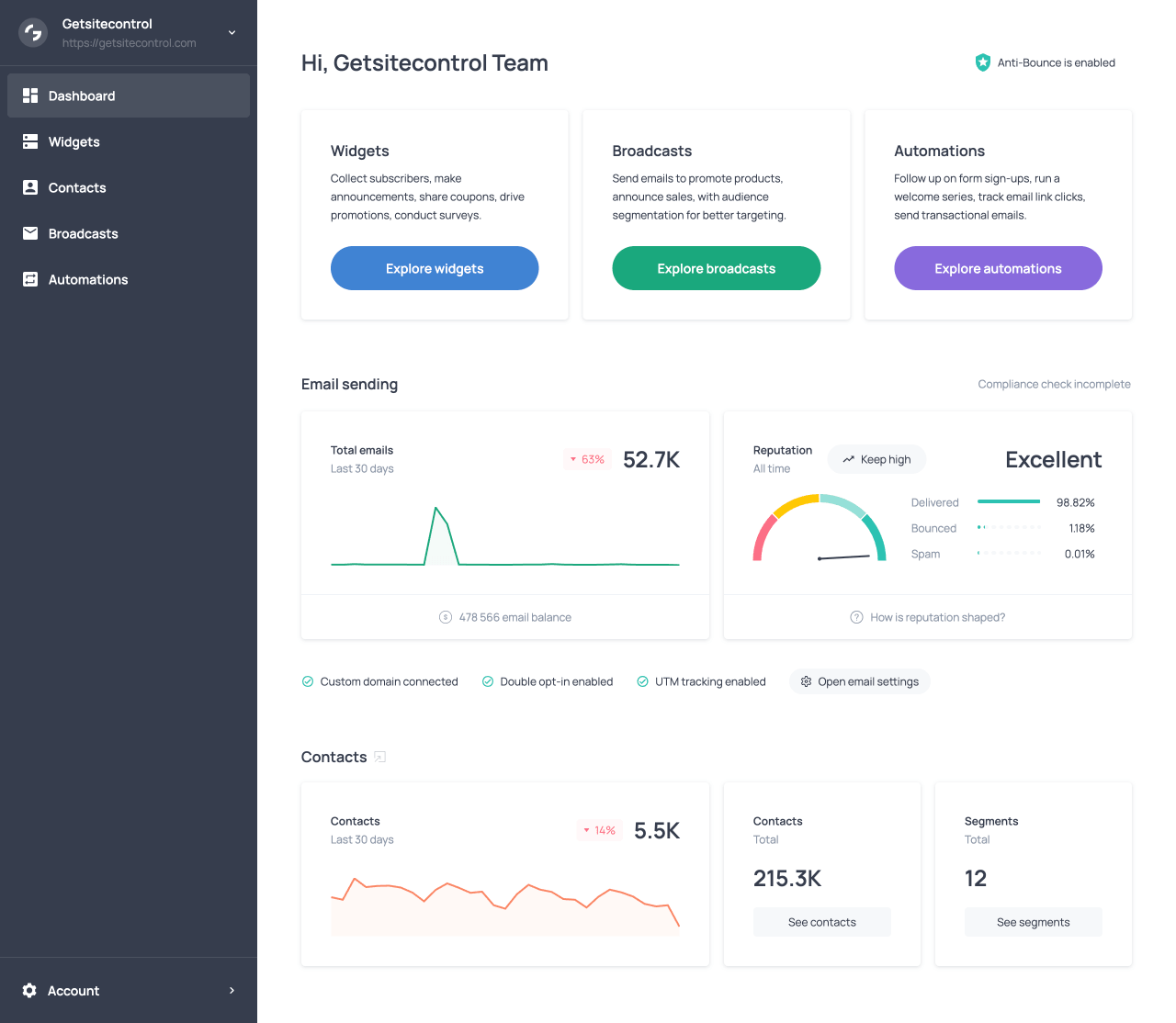
Getsitecontrol’s built-in sender reputation indicator in the Dashboard tab
Core deliverability safeguards
The following sections describe the core features in Getsitecontrol that improve deliverability and support sender reputation across all email marketing activity, including both broadcasts and automations.
Anti-Bounce and address validation
Bounce rates are one of the most important indicators of sender reputation. High bounce rates mean that emails are being sent to invalid or outdated addresses, which signals poor list quality. It may also indicate improper collection practices, such as purchasing lists, adding contacts without confirmation, or allowing bot-generated submissions to enter your database. Mailbox providers see high bounce rates as a sign that the sender is emailing recipients who never requested their messages or whose addresses may not even exist. As a result, they reduce trust in the sender, which negatively affects deliverability.
Getsitecontrol’s Anti-Bounce system validates email addresses before sending by checking each contact for potential issues. It can be enabled from the Dashboard, Automations, or Broadcasts tabs by switching a toggle.
This feature is particularly useful for contacts collected without validation, imported lists, or older databases, where data may no longer be accurate. By identifying problematic addresses before delivery, the system ensures only valid addresses are included in a campaign, keeping bounce rates low or near zero. A low bounce rate indicates a well-maintained contact list and good email collection practices, which mailbox providers view as positive signals when deciding whether emails should reach the inbox.
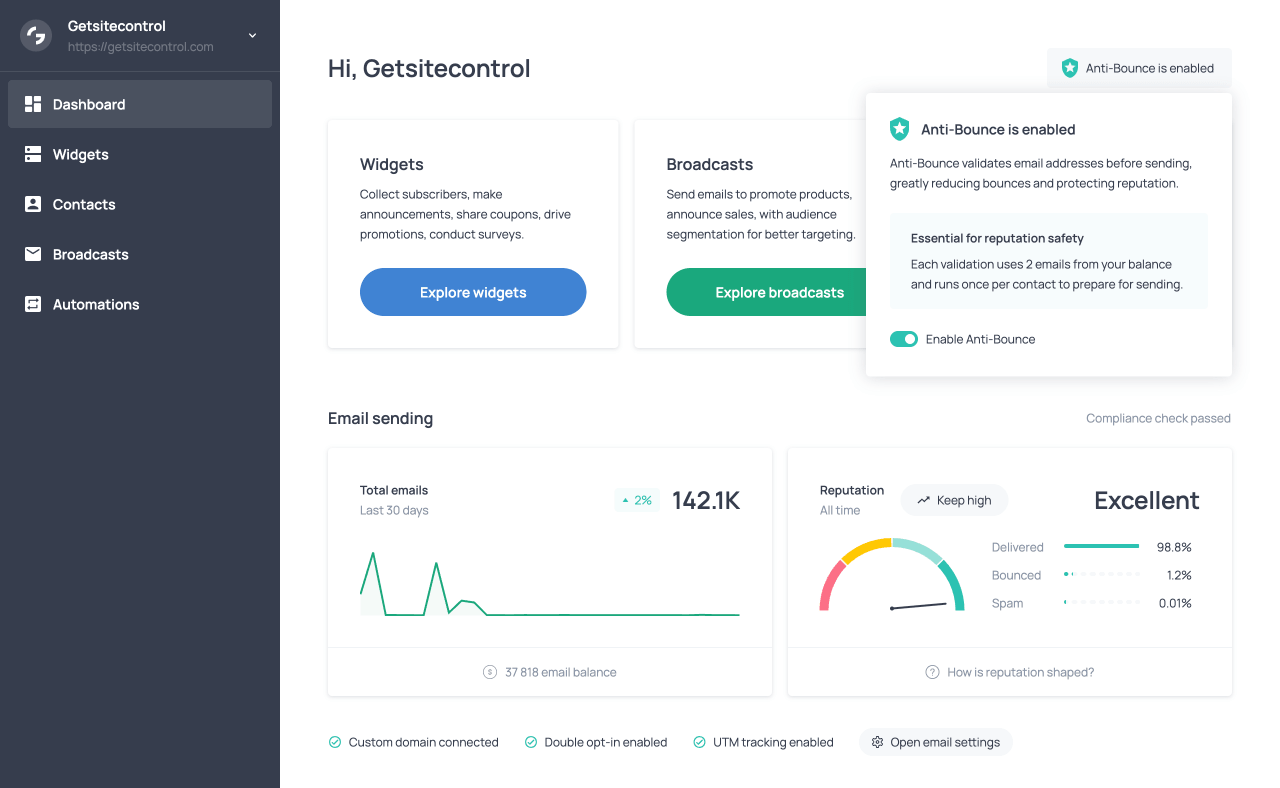
The Anti-Bounce toggle in the Dashboard tab
Filters and contact engagement
List quality also depends on how contacts engage with your emails. Some contacts may remain technically valid but gradually stop opening or interacting with emails. Continuing to send messages to inactive contacts lowers overall engagement rates, which mailbox providers interpret as a sign that messages are not relevant to recipients.
To prevent this, it is important to monitor engagement and adjust who you target with your emails. In Getsitecontrol, you can do this by using segments and conditions based on email activity, such as whether contacts have opened or clicked recent campaigns. These conditions allow you to exclude inactive contacts from regular broadcasts or automations, and create segments specifically for disengaged contacts.
Contacts who have not opened or clicked emails for an extended period can be targeted with a dedicated re-engagement campaign designed to confirm whether they still want to receive your emails. If they remain unresponsive, they should be removed from the active sending audience. This approach ensures that emails are delivered to contacts who are interested and likely to interact with them, maintaining healthy engagement levels and a strong sender reputation.
Anti-Spam tools and list quality at signup
List quality begins when you collect contacts. If invalid addresses enter your database, they increase bounce rates, affect engagement, and weaken deliverability. Getsitecontrol provides built-in tools to protect list quality at the point of collection: Double opt-in emails and Google reCAPTCHA.
Double opt-in emails
Double opt-in emails require subscribers to confirm their email address after submitting a form. The system sends a confirmation email with a verification link, and only subscribers who complete this step are added to the contact list. Unconfirmed submissions are automatically excluded, preventing mistyped, fake, or bot-generated addresses from entering your database. As a result, your contact list contains only verified, intentional subscribers who are more likely to interact with emails. A verified list also means you won’t send unnecessary emails to invalid addresses, lowering email delivery costs over time.
The double opt-in system is fully customizable. You can configure the confirmation email’s subject line, content, sender name, and sender domain. Confirmation emails can be sent from a shared or custom domain, and users can be redirected to a built-in success page or a custom destination after verification. A single confirmation email can be linked to multiple widgets.
Google reCAPTCHA
Google reCAPTCHA protects your forms by blocking bot submissions before they reach your system. It can be enabled or disabled with a single toggle from the Anti-Spam tab of the widget editor. Getsitecontrol uses reCAPTCHA v3, which works invisibly in the background, analyzing visitor behavior and identifying suspicious activity without interrupting legitimate visitors. Without this protection, bots can submit forms freely, filling your contact list with fake addresses. These fake contacts can trigger unnecessary emails, including double opt-in confirmations, which consume your sending balance. More importantly, sending emails to invalid addresses increases bounce rates and reduces the chances that emails sent to valid recipients reach the inbox.
Using double opt-in and reCAPTCHA together provides the strongest protection. Bots are blocked before submission, and only confirmed subscribers are added to your contact list, resulting in a higher-quality list, stronger engagement, and improved deliverability.
Custom sending domain and reputation
In Getsitecontrol, if you don’t configure a custom domain, the platform sends emails from its shared sending domain by default (postie.getsitecontrol.com). This is a valid option for sending email campaigns. However, in this setup, mailbox providers evaluate your emails based on the shared domain’s reputation rather than your own. As a result, you have little control over how your sender reputation develops over time.
When you use a verified custom domain, mailbox providers evaluate your sender reputation independently. Over time, consistent sending behavior and recipient engagement allow you to build a strong sender reputation that positively influences deliverability. Additionally, sending emails from your custom domain creates consistency between the sender address and the sender name shown in your subscribers’ inboxes, making your emails appear more legitimate and trustworthy to recipients.
To send emails from your domain, you need to authenticate it in Getsitecontrol. This starts with adding the domain in the Email settings, where the platform generates the DNS records required for authentication. These records are based on standard protocols such as SPF, DKIM, and DMARC, which prove to mailbox providers that your emails are legitimate. You then create these records in your domain provider and, once they are in place, verify the domain in Getsitecontrol. After verification, you can set the custom domain as the sender in broadcasts and automation emails.
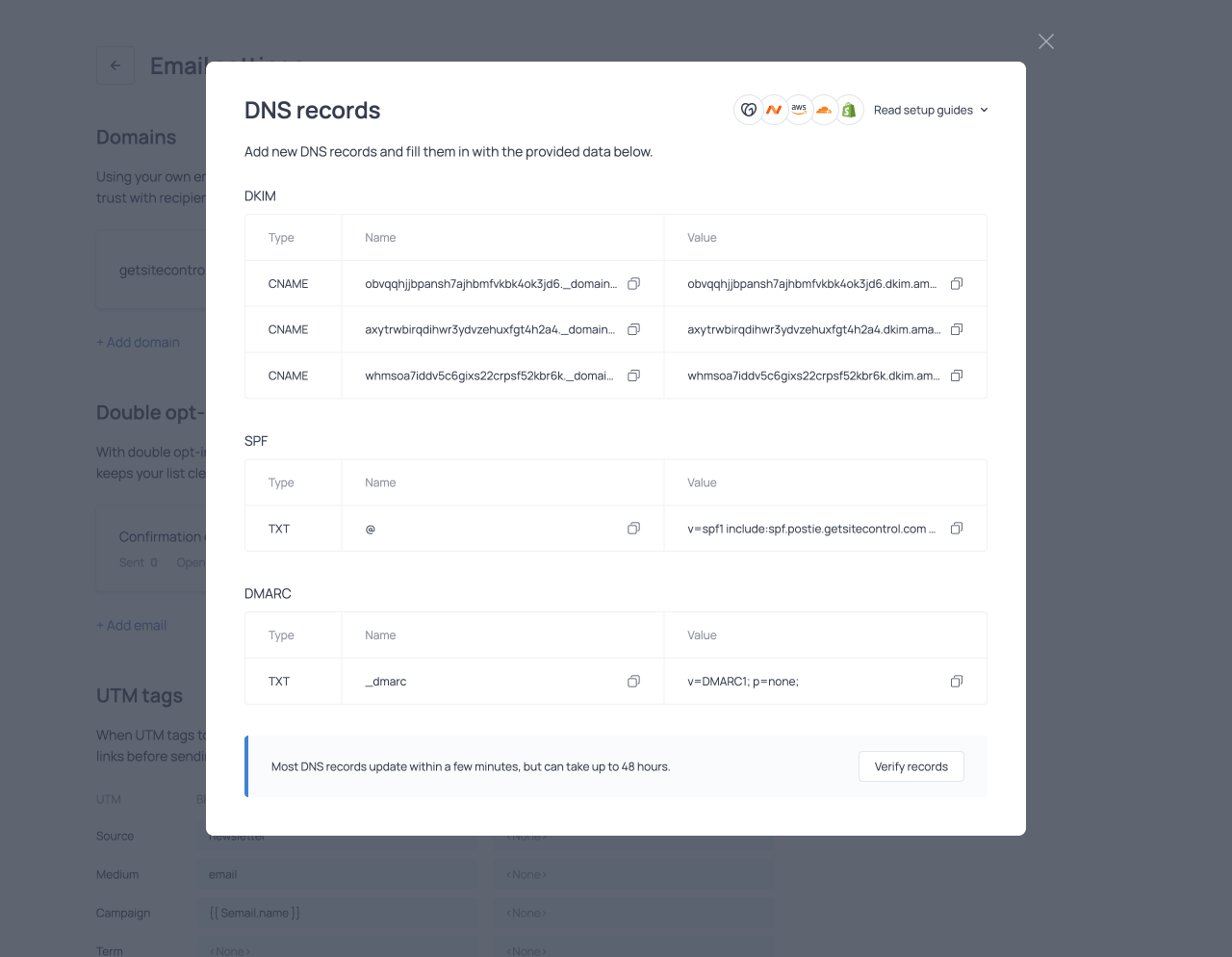
The DNS records window in the Email settings section
Link checker and user experience
Links within the email should be functional and related to the email content. Missing or broken links, or links leading to unexpected destinations, reduce trust in the sender and negatively affect engagement. From a user experience perspective, working links make it easy to visit pages and complete the actions the message encourages. On the contrary, broken or missing links require recipients to take additional steps to find the intended page, which many are unlikely to do.
Getsitecontrol includes a built-in Link checker that automatically scans the email and verifies that all buttons are assigned links and that all links are functional. If any links are broken or missing, the system flags the issue so it can be corrected before the campaign is sent. By identifying these problems before sending, the Link checker ensures that recipients can interact with the email as intended, preventing friction that could reduce engagement and affect deliverability.
| Safeguard | How it supports deliverability |
|---|---|
| Anti-Bounce validation | Prevents emails from being sent to invalid addresses, which increases bounce rates and harms deliverability. |
| Contact engagement filtering | Prevents continued sending to inactive contacts, which lowers engagement and signals low relevance to mailbox providers. |
| Signup protection (double opt-in and reCAPTCHA) | Filters out fake, mistyped, or bot-generated email addresses before they enter the contact list. |
| Custom sending domain | Allows you to build sender reputation on your own domain, which mailbox providers evaluate when determining inbox placement. |
| Link checker | Identifies broken or missing links that reduce trust and engagement and affect user experience. |
Deliverability in broadcasts
Broadcast campaigns are one-time emails sent to a selected audience at a defined time. They often involve sending large volumes of emails, which mailbox providers may view as suspicious behavior. For this reason, Getsitecontrol includes several tools to safeguard sender reputation, maintain consistent inbox placement, and optimize engagement when sending broadcasts.
Sending modes and their impact on deliverability
Sending modes determine how emails are distributed across recipients when sending out a broadcast, including timing and pacing. This affects how mailbox providers interpret your sending activity. Uneven traffic distribution with sudden spikes or sending large volumes to less engaged audiences can negatively impact deliverability, while controlled and predictable patterns work towards inbox placement. Each sending mode uses a different delivery strategy to balance speed and risk while maximizing engagement, and is designed for specific campaigns and audiences.
Burst for fast delivery in urgent campaigns
Burst delivers all emails immediately at maximum speed. It is best suited for urgent or time-sensitive campaigns where fast delivery is critical. However, sending large volumes at once may be viewed as problematic by mailbox providers and can negatively affect domain reputation and inbox placement. For this reason, the Burst mode is most appropriate when sending to smaller or highly engaged audiences, and from domains with an established reputation.
To mitigate this risk, the Burst mode includes a Traffic balancing option (paid plans only). When enabled, more engaged contacts are targeted first, while less engaged contacts are introduced gradually. At the same time, emails are spread across major mailbox providers such as Gmail, Yahoo, and Outlook to avoid concentrating traffic toward a single provider. This maintains high sending speed while reducing the risk of triggering spam filters.
Ramp (Pro) for everyday sending and domain warm-up
Ramp distributes emails gradually across a defined delivery window, increasing the sending speed at the beginning and slowing it toward the end. This creates a natural sending pattern that mailbox providers recognize as legitimate, supporting deliverability over time.
You can adjust the delivery window to control how long the campaign runs and how gradually emails are distributed. This allows you to tailor sending speed to the audience size, engagement level, and domain reputation.
The Ramp mode is designed for everyday safe sending, and it’s also suitable for large audiences, less engaged contact lists, or domains that require warming up. As a Pro feature, this mode is only available on paid plans.
Timezone (Pro) for local-time delivery worldwide
Timezone delivers emails at the same scheduled hour in each recipient’s time zone, distributing the campaign over 24 hours. This ensures that emails arrive at a specific time for each recipient, regardless of their location. Without this adjustment, contacts in different time zones may receive messages at inconvenient hours, which can reduce visibility and engagement.
The Timezone mode is useful for time-sensitive campaigns with a global audience, where intentional timing improves open rates and engagement. This mode is only available on paid plans.
Smart (Pro) for optimized delivery timing
Smart uses past interaction data, such as opens and clicks, to predict when each contact is most likely to engage. Emails are delivered within a defined delivery window at individually selected times based on each contact’s previous behavior. This approach is most effective for audiences with an engagement history, where enough data is available to make reliable predictions.
By aligning delivery with individual engagement patterns, Smart mode helps increase open and click rates. This contributes to a stronger reputation and more consistent deliverability over time. As a Pro feature, Smart mode is available on paid plans only.
| Mode | Impact on deliverability |
|---|---|
| Burst | Best for urgent campaigns and engaged audiences where fast delivery is needed. Works best when sending volumes are controlled and the domain has an established reputation. |
| Ramp (Pro) | Best for regular safe sending, less engaged audiences, or domain warm-up. Gradual sending maintains stable patterns and supports consistent deliverability. |
| Timezone (Pro) | Best for global audiences. Sending at the same local time improves engagement across regions, supporting deliverability. |
| Smart (Pro) | Best for audiences with engagement history. Timing emails based on past behavior increases opens and clicks, helping secure inbox placement. |
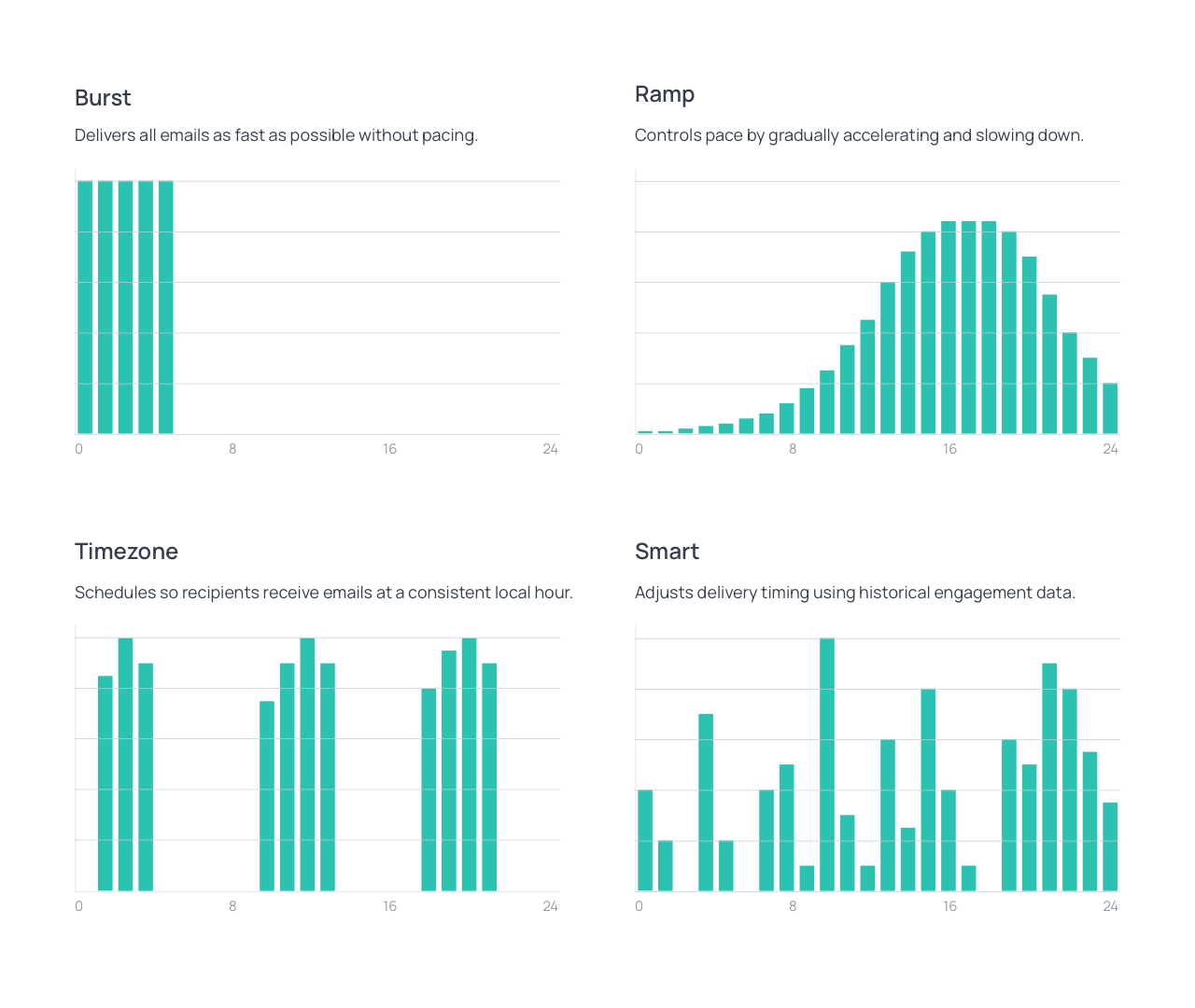
Graphs representing each of the sending modes: Burst, Ramp, Timezone, Smart
Audience targeting for better deliverability
Audience selection directly affects deliverability because it determines how relevant your emails are to the people receiving them. Mailbox providers monitor how recipients respond to your emails, and these engagement signals play a critical role in determining whether your emails reach the inbox.
Building audiences with segments and conditions
Broadcasts allow you to target specific audiences rather than sending to your entire contact list. You can select existing segments or define audiences using conditions directly during campaign setup. Conditions can be combined to create complex targeting rules.
Several types of conditions are available. Contact-based conditions allow filtering by attributes such as location, tags, subscription status, and purchase history (Shopify). Custom fields can also be used to refine targeting based on data specific to your business.
Email interaction conditions allow you to filter contacts based on engagement, including whether they have received, opened, or clicked previous emails, how frequently they interact, and how recently that interaction occurred. This allows you to target highly engaged audiences or exclude inactive contacts from a campaign.
Premade audience templates simplify this process by grouping contacts based on common patterns, such as recently engaged subscribers, inactive subscribers, or customers with specific purchase behavior. These templates provide a starting point for targeting and can be further refined using conditions.
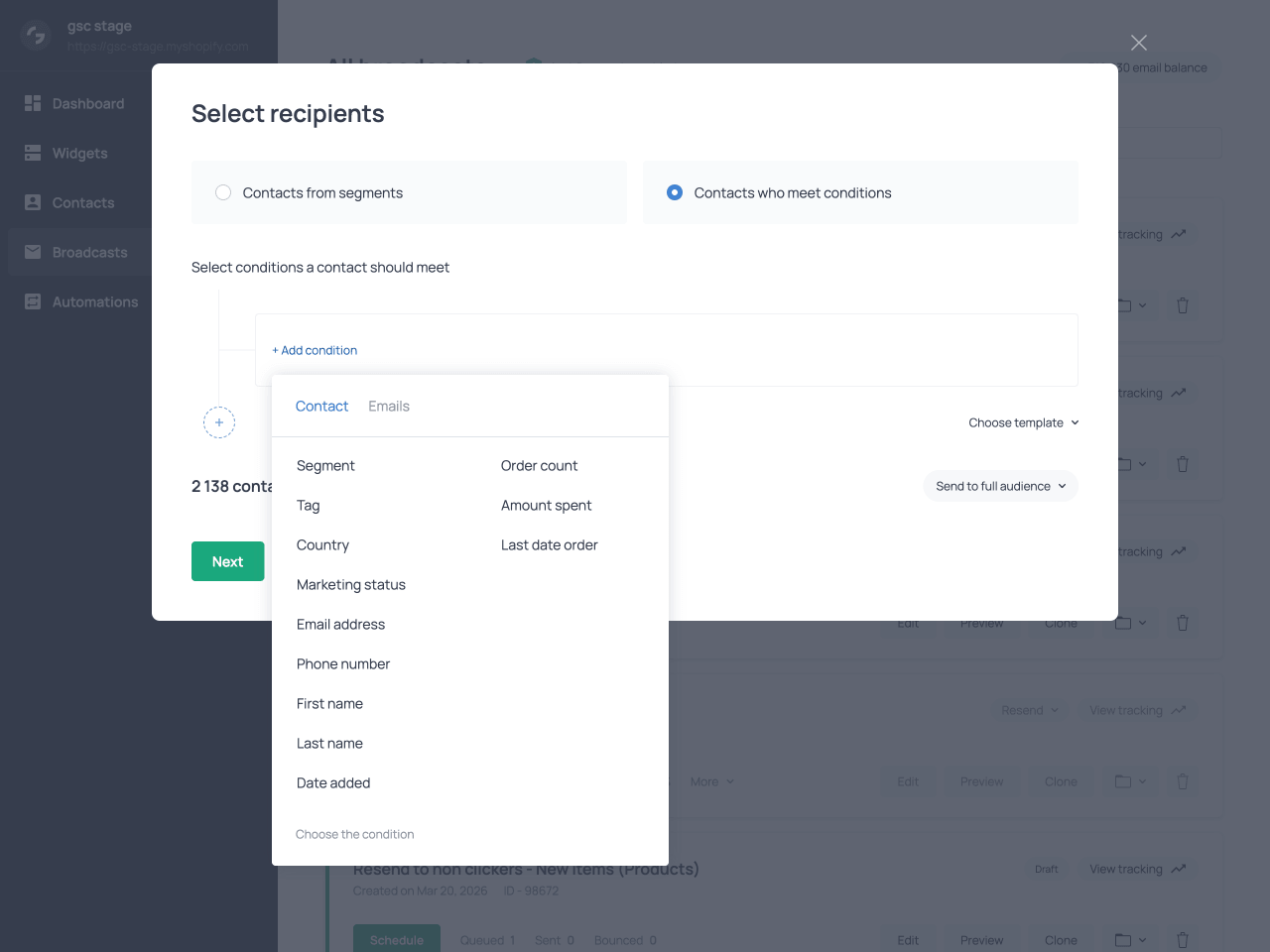
Building the audience for a broadcast using contact-based conditions
Full vs partial sending for deliverability control
Broadcasts can be sent either to the full audience that matches your selected segments or conditions, or to a portion of that audience. Choosing Full audience sends the broadcast to all contacts included in the selected segments or conditions. Choosing Selected portion limits the audience to a subset of contacts, reducing the recipients of the send.
When sending to a selected portion, you specify the number of contacts to include in the broadcast and how they are selected. Contacts can be selected based on when they were added, either the newest or the oldest; based on engagement, targeting those with the highest number of opens and clicks; or at random. This option allows you to introduce a campaign gradually. For example, you can first send it to a smaller portion of the audience to evaluate performance, or start with the most engaged contacts before sending it to the rest of the list.
Optimizing deliverability with A/B testing
A/B testing allows you to compare multiple versions of a broadcast before sending it to the whole audience you have selected. It identifies the most effective version early on, allowing you to send out the email most likely to generate engagement. Engagement signals play a central role in deliverability; therefore, optimizing subject lines, content, and sender details before full delivery helps achieve more consistent inbox placement.
Testing variants to improve engagement
A/B testing involves creating multiple variants of the same broadcast. Each variant is a fully independent version and can differ in subject line, sender domain, sender details, and email content, including layout and calls to action.
There are no predefined limits on what can be changed. The system evaluates the differences between variants and measures how each version performs, allowing both small adjustments and broader changes to be tested within the same campaign.
Defining test size and evaluation period
When configuring a test, you set what percentage of the selected audience to use for testing. This portion is divided evenly across all variants so that each version is sent to an equal number of recipients.
You also set a waiting period that determines how long the system waits after sending the test portion to collect engagement data before evaluating results. During this pause, recipients have time to open, click, and engage with the emails, as not all interactions happen immediately after delivery.
Balancing delivery to protect sender reputation
All A/B tests are sent using Burst mode with Traffic balancing enabled. This allows emails to be delivered quickly while maintaining a controlled distribution across recipients and mailbox providers. This safeguards the sender reputation during the test.
Identifying a winner: intelligent VS manual selection
After the evaluation period, the system compares variant performance and automatically selects the best-performing version to send to the remaining audience. The metric used for comparison depends on what differs between the tested variants. When only the email body differs, such as the content or layout, the system evaluates performance based on the click rate (clicks divided by delivered emails). When the differences are limited to inbox elements, such as the subject line, preview, or sender information, the system compares variants using the open rate (opens divided by delivered emails). If multiple elements differ across variants, the system evaluates performance using a combination of open and click rates.
As an alternative to automatic selection, you can manually choose a winner at any point before the waiting period ends. This allows you to conclude the test early when results are already clear or when timing is critical and the campaign needs to be sent without delay.
Using metrics to monitor and protect deliverability
Broadcast metrics provide data on both delivery and engagement, including how many emails are queued, sent, and bounced, as well as how recipients interact with them through opens, clicks, unsubscribes, and spam reports. Real-time tracking allows you to follow the campaign progress, while post-send reports provide a complete view of campaign performance.
Tracking these metrics across campaigns helps identify trends that affect deliverability. Declining engagement, rising bounce rates, or increasing spam complaints signal emerging issues. Monitoring these signals allows you to adjust targeting, content, or sending strategy before these issues damage your sender reputation and cause emails to land in the spam folder.
Deliverability in automations
Automations are triggered by user behavior or lifecycle events rather than being scheduled manually. Since emails are sent in response to actions taken by the recipient, they are usually expected and aligned with user intent, which promotes engagement.
Unlike broadcasts, which require careful control of sending volume, pace, and audience, automations follow a naturally distributed sending pattern. Contacts enter workflows at different times and move through them gradually, so there are no spikes in sending activity by design. As a result, many factors that support deliverability are built into how automations work, rather than requiring active configuration. The following sections cover the main elements supporting deliverability in automations.
Behavior-triggered emails and message relevance
Automations are activated by events such as form submissions, link clicks, purchases, or changes in subscriber status. Messages are often sent in response to actions recipients have taken, which makes them more relevant and timely. In many cases, the recipient expects this communication as a natural continuation of the action they performed. This increases engagement and reduces the chance that messages will be ignored or marked as spam. Higher engagement strengthens sender reputation and improves inbox placement, reflecting positively on broadcast campaigns as well.
Using filters to target contacts
Filters allow automations to target contacts with precision. The conditions that make up filters can evaluate contact data, engagement history, and contextual information such as purchase details. You can apply filters both at the automation level and at individual steps, sending different messages based on behavior or attributes.
This refined targeting ensures that emails are only sent to people who find them relevant. It prevents unnecessary or untimely communication that could reduce engagement or lead to unsubscribes or spam complaints. Conditions also prevent emails from reaching contacts who have already completed the intended action, avoiding redundant messages and reducing sending costs.
In practice, the most effective conditions are based on recent actions, such as contacts who opened or clicked previous emails, clicked a product link, or started a purchase but did not complete it. Used this way, filters keep automated workflows responsive to what contacts actually do, rather than sending the same messages to everyone.
Distributed sending and contact-level pacing
As contacts enter automations and move through sequences at different times, the system spreads delivery naturally rather than sending messages in large batches. This distribution maintains steady sending volumes, which mailbox providers interpret as consistent and trustworthy sending behavior.
Additionally, placing delays between steps in an automation allows you to pace emails for the same contact, reducing the risk of overwhelming recipients, which can lead to unsubscribes or spam complaints. By keeping communication well-paced for each contact, automations maintain positive recipient responses, which promote inbox placement.
Email design and deliverability
Email deliverability is influenced not only by technical setup and sending practices but also by how emails are presented to recipients. Mailbox providers analyze both inbox elements and message content when evaluating whether emails appear legitimate and relevant. Subject lines and preview text influence whether recipients open the email in the first place, while clear layout and readable formatting help recipients understand the message once it is opened. Personalized content and attention-grabbing elements then encourage further interaction, generating positive engagement signals that support both conversions and consistent inbox placement.
Subject lines and preview text
Subject line, preview text, and sender information shape the first impression of the email and influence how recipients respond to it. The subject line and preview text should clearly reflect the purpose of the message and match the content that follows. Misleading or exaggerated subject lines may attract initial attention, but often lead to unsubscribes or spam complaints once recipients realize the email does not match their expectations. This practice is known as ‘clickbaiting’ and sends mailbox providers poor signals regarding your email activity.
Mailbox providers also analyze subject lines directly. Excessive capitalization, repeated punctuation, and misleading wording are interpreted as signs of low-quality or unwanted promotional content and increase the risk of emails being filtered into spam.
As for the sender information, when recipients repeatedly see messages coming from the same name and address, they become familiar with the source and are more likely to trust it. This trust leads them to open and click the email, which signals to mailbox providers that recipients recognize and value your messages.
Email layout and readability
The internal structure of an email also influences deliverability. Mailbox providers analyze message content and formatting to evaluate whether an email appears legitimate and useful to recipients. A clear layout with headings, structured text, and well-defined sections helps recipients quickly understand the message. Emails that rely on images with little supporting text can be difficult for spam filters to interpret and may be mistaken for low-quality content or spam. Including sufficient text alongside visual elements also ensures that the message remains understandable even when the email client blocks images.
Getsitecontrol provides premade email templates that offer a well-structured starting point for building campaigns. These templates include predefined sections for headings, text, images, and calls to action, creating a balanced layout that is easy to read and navigate. Each template can be fully customized, allowing you to adapt the content and visual elements to match your campaign while maintaining a clear and organized structure. Starting from a premade template reduces formatting issues and ensures emails are readable across different devices and email clients.
Engaging and dynamic email elements
Once recipients open and read an email, the next goal is to encourage interaction with its content. Elements such as calls to action, visual highlights, and dynamic product feeds guide readers through the message and make it easier to explore an offer. When recipients click links, view products, or complete a purchase, these interactions signal that the email is relevant and valuable, and deserves a place in the recipients’ inboxes.
Call-to-action buttons
Calls to action play an especially important role in engagement. Visible and well-placed CTA buttons help recipients understand what they are expected to do after reading the message, whether that is visiting a product page, exploring a promotion, or completing a purchase. When the desired action is clearly presented and easy to access, recipients are more likely to click through.
Attention-grabbing visual elements
The email editor includes several visual elements designed to make messages more dynamic and engaging. Slideshows allow multiple images or products to be presented within a single section, showcasing several items without overloading the layout of the email. Animated text banners draw attention to important announcements or promotional messages, while Countdown timers introduce urgency by displaying how much time remains before an offer expires. Lastly, Coupon boxes highlight discount codes directly within the email, making them noticeable and easy to use. These elements guide the recipient’s attention through the message and highlight key parts of the content, making the email easier and more interesting to explore.
Product cards and dynamic product feeds
Product cards allow you to display products directly inside the email. They can be used in both broadcasts and automation emails to showcase items and lead recipients to product pages. When adding a product card, you can include images, prices, and links, creating a compact product preview within the email. This allows recipients to quickly evaluate the product and decide whether to explore it further, with a convenient button to take the next step.
For Shopify stores, product cards can also display star ratings, providing social proof that helps recipients evaluate products directly from the email. Additionally, product cards can be populated automatically using dynamic product feeds. Instead of manually selecting products, you can configure the feed to display bestsellers, items on sale, new items, or items from a particular collection. In addition to these predefined feeds, Shopify product cards can display recommendations based on a customer’s purchase history. This means each customer may see different products tailored to their interests, making the email more relevant and personalized.
Behavior-based elements in automation emails
Dynamic product content is also used in automation emails to reflect the specific action that triggered the message. For Shopify stores, abandoned checkout automations can include an Abandoned items element that shows the products left in the cart, encouraging customers to return to the purchase. Post-purchase emails can include a Purchased items element that displays the products included in an order, making follow-up communication more informative.
Automation emails can also contain contextual calls to action. In checkout recovery messages, a Continue checkout button directs customers back to their saved checkout session, so they can complete the purchase without restarting the process. By simplifying the next step, these contextual elements reduce friction and encourage interaction with the email.
Deliverability factors & tools
| Deliverability factor | How to manage it in Getsitecontrol |
|---|---|
| Custom sender and reputation | Authenticate your sending domain so mailbox providers can verify your identity and you can gradually build your reputation. Configure SPF, DKIM, and DMARC records in Email settings → Domains. |
| List quality | Prevent invalid contacts from entering your list and reduce bounce rates. Use Anti-Bounce validation, Double opt-in emails, and Google reCAPTCHA for signup protection. |
| Audience targeting | Send emails only to interested recipients to maintain strong engagement and reduce complaints. Use segments and conditions in broadcasts and Filters in automations. |
| Sending patterns | Maintain consistent sending behavior and avoid traffic spikes that trigger spam filters. Use Broadcast sending modes such as Ramp, Timezone, and Smart to control pacing and timing. |
| Engagement signals | Opens and clicks indicate that recipients value your emails. Improve engagement through clear subject lines, relevant audience targeting, and A/B testing in broadcasts to identify the inbox elements and content that generate more interaction. |
| Email content and design | Clear layout, readable formatting, and engaging elements encourage recipients to interact with your messages. Use premade templates, CTA buttons, dynamic product feeds, and visual elements like Slideshows, Countdown timers, and Coupon boxes. |
| Performance and reputation monitoring | Track delivery and engagement metrics to detect issues early and adjust your sending strategy. Use broadcast campaign metrics to monitor opens, clicks, bounces, and complaints across campaigns. Check the sender reputation indicator to monitor the overall quality of your sending activity. |
Troubleshooting
| Issue | How to fix it |
|---|---|
| Bounce rate suddenly increases | Invalid or outdated addresses have joined your list. Enable Anti-Bounce validation and use double opt-in and reCAPTCHA to prevent invalid submissions. |
| Open rates decline across campaigns | Subject lines may be unclear, or recipients may not recognize the sender. Review subject lines, preview text, and sender information, and consider testing variations using A/B testing. |
| Click rates are low despite normal open rates | The email content may not be engaging or easy to navigate. Review the email layout, ensure text and images are balanced, and verify that links and buttons work correctly using the Link checker. |
| Engagement gradually decreases over time | Your campaigns may be reaching too many inactive contacts. Use segments or conditions to prioritize recently engaged subscribers and exclude inactive ones from regular sends. |
| Deliverability drops after sending a large campaign | Sudden spikes in sending volume can trigger spam filtering. Use controlled sending modes such as Ramp or Smart and start with smaller or more engaged audiences. |
| Automated emails receive little interaction | Automation messages may not match the contact’s current situation. Review automation triggers, filters, and delays to ensure messages respond to contact behavior or status. |
| Unsubscribes or spam complaints increase | Emails may be sent too frequently or to audiences who do not expect them. Refine audience targeting, adjust sending frequency, and ensure messages match expectations. |
Recap: principles of deliverability
Email deliverability depends on several factors that mailbox providers evaluate when deciding whether your emails should reach the inbox. Technical authentication confirms your identity as a sender; list quality ensures emails reach valid and interested recipients; consistent sending patterns signal that your email activity is legitimate and predictable; recipient engagement indicates that your messages provide value.
Getsitecontrol supports each of these areas through different systems and tools. Safeguards such as sending from a custom (branded) domain, Anti-Bounce validation, Double opt-in emails, and Google reCAPTCHA prove sender identity and maintain list quality across all types of email campaigns. Broadcast features allow you to control delivery speed, refine audience targeting, and test campaign variants, while automations naturally support deliverability through behavior-based messaging and gradual sending patterns.
When these elements are used together, they create the conditions mailbox providers expect from legitimate senders: verified identities, relevant audiences, predictable sending behavior, and consistent engagement. Over time, these signals reinforce one another, helping your emails reach the inbox across both broadcasts and automations.