Put your email list to work
Keep your list clean, send newsletters, and welcome new subscribers with automated emails in Getsitecontrol.

A visitor enters an email address, collects a welcome discount, and disappears. Your popup records a signup, but the next five emails go to an inbox the visitor has already abandoned.
Temporary email services make this easy. The visitor can receive the code without giving you an address they use every day. If enough signups work this way, your mailing list grows while the number of people reading it barely changes.
Getsitecontrol helps you find these addresses in an existing list and stop new ones at the signup form. Start with the free Email Quality Checker, then use the built-in filters on Pro to keep disposable addresses out of your database.
A disposable email address is a temporary inbox. People use one to claim a code, download a file, or try a service without sharing their regular address. Some inboxes expire quickly; others are abandoned after the first message.
A confirmation email alone does not solve this. A temporary inbox can receive a confirmation link, and the visitor can click it before leaving. You need to identify the address type as well.
Temporary inboxes, privacy addresses, and shared company mailboxes can look unfamiliar in a contact list. They serve different purposes, so check the address before rejecting it.
| Type | How it works | What to do |
|---|---|---|
| Disposable inbox | Used temporarily to collect a code, download, or confirmation message. | Find with the checker and exclude from future newsletters. |
| Privacy address | Forwards messages to a regular inbox while hiding the person’s main address. | Check it before removing it. The person may still read every email. |
| Alias | Another address someone uses for their regular inbox. | Keep the address the subscriber provided. |
| Shared business inbox | Used by several people in a team. | Keep legitimate subscribers and business enquiries. |
Apple’s Hide My Email, for example, creates random addresses that forward messages to the user’s regular inbox. A customer using one can still read your emails and buy from your store.
Use the checker’s Disposable category to find temporary addresses. Keep Untrusted results as a separate group: that label covers other risky addresses. The single-address guide shows how these results differ from the Shared inbox label.
Export the contacts collected by the popup you want to review. Keep the form name or source tag in your original file, so you know where the addresses came from.
Open the Email Quality Checker, choose Bulk check, and upload the CSV. You can check up to 50,000 unique addresses at a time for free, without an account. For an individual signup, use Single check instead.
The chart shows Disposable addresses alongside the other categories. Here is a report with 2,703 addresses:
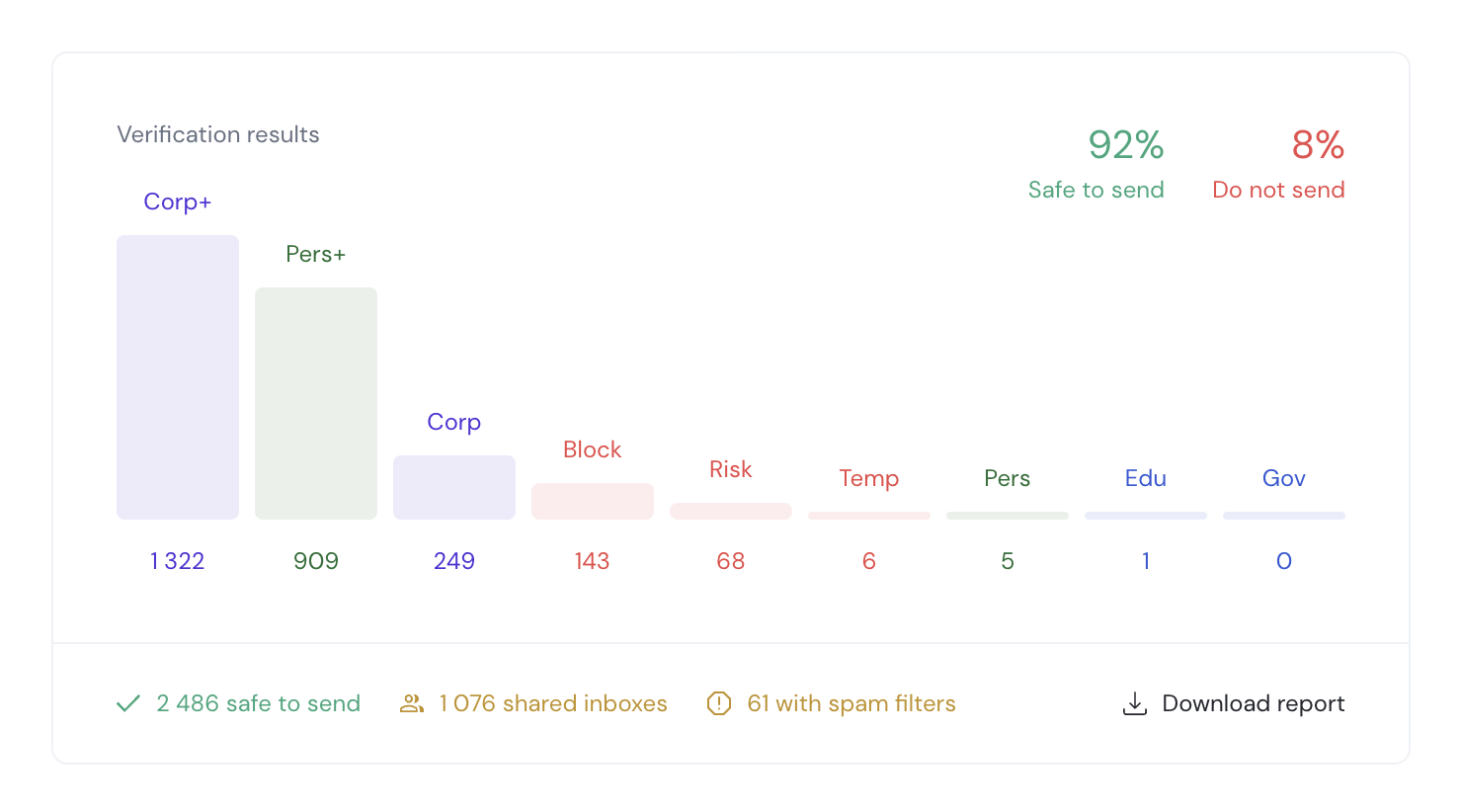
There are six Disposable addresses in this report, about 0.22% of the list. The checker also found 68 Untrusted and 143 Broken addresses. Together, these make up the 217 addresses marked Do not send.
Choose Download report. In the CSV, the quality value Temp identifies Disposable addresses and Risk identifies Untrusted ones. The ok_to_send column gives the sending recommendation.
Match those rows to your original contact file using the email address. If you exported several forms together, use the form tags to find which one collected the temporary addresses.
For example, if all six came from the same discount popup, start with that popup. Turn on its disposable-email filter, then review the next group of signups to see what changed.
Keep the temporary addresses out of future newsletters. If one belongs to a customer who placed an order, keep their purchase record; excluding the email from marketing does not require deleting the customer. Our email list cleaning guide explains how to update the mailing list from the report.
On Getsitecontrol Pro, you can filter addresses before they enter the contact database. You do not need to wait until the next list export to remove them.
Open the widget’s Anti-Spam settings and find Filter risky emails. Enable Filter disposable emails. To block other risky addresses too, enable Filter untrusted emails. The settings are separate, so you can use either filter or both.
The checks run after the visitor submits the form, before the address is added to your database. On a newsletter popup offering a welcome code, this prevents temporary addresses from becoming contacts in the first place.
For existing contacts, exclude Disposable and Untrusted through Quality filters when choosing newsletter recipients or setting up automated emails. Save the selection for future campaigns using the contact management guide. The Pro feature guide lists the available Quality controls.
| Protection | What it does |
|---|---|
| Quality filters · Pro | Identify disposable and untrusted addresses. |
| Double opt-in · Free | Ask the subscriber to confirm through their inbox. |
| Invisible reCAPTCHA · Pro | Help stop automated submissions from bots. |
The signup protection guide covers the setup for confirmation emails and bot protection.
A popup can collect plenty of addresses while adding few people who will read your emails or buy. If you find many temporary addresses in your list, look at where those signups came from before spending more to attract similar visitors.
Check contacts collected by each form over the same period, before disposable-email filtering was enabled. Compare the share of temporary addresses, since a busy popup will naturally collect more of them than a rarely seen one.
If one form stands out, check where it appears and which ads bring people to it. A giveaway promoted to a broad audience may attract visitors who want the prize but have little interest in your products. Try showing that offer on relevant product pages or narrowing the ad audience. Change one thing at a time so you can see what helped.
A low cost per signup can hide money spent collecting temporary addresses. When comparing paid campaigns, count subscribers who passed the quality check and confirmed their subscription. Divide the campaign spend by that number to see what each usable signup actually cost.
Then check what those subscribers do. A campaign that brings fewer signups but more product clicks and purchases may deserve more of your budget than one that only fills the list.
Once the filter is on, blocked addresses do not enter your contact database. Compare the subscribers each form adds from that point onward: how many confirm, click through to your site, and buy. Give each group the same amount of time to respond.
If fewer addresses reach the list but clicks and sales hold steady, you are spending fewer emails on people who were unlikely to become customers. If both signups and sales fall, review the traffic and offer before increasing the campaign budget.
The filter deals with the address. Your signup offer still needs to make future emails worth receiving.
“Get 10% off” explains the immediate reward. Add what subscribers get afterward, such as early access to new collections or a monthly offer on their favorite products.
For example: “Get your welcome offer, then first access to our monthly fabric drops.” Someone interested in new fabrics has a reason to use an inbox they keep reading.
Match the offer to the page where it appears. Our discount popup guide shows ways to offer a shopping benefit when it is relevant to the visitor. Deliver the promised code in a welcome email sequence and follow it with the product news you described.
For a free guide or calendar, say what else the person will receive. “Download the planting calendar and get one seasonal gardening tip each week” is easier to judge than an unexplained request for an email address.
Then keep the follow-up on that topic. A planting reminder gives the subscriber a reason to open the next email. Unrelated daily offers give them a reason to avoid sharing their regular inbox next time.
Use Getsitecontrol’s Email Quality Checker. Check a single address or upload a CSV with up to 50,000 unique emails. Look for the Disposable category, shown as Temp in the download.
A temporary inbox can receive and confirm an email. Use a disposable-email filter as well as double opt-in to identify that address type.
No. People can enter temporary addresses manually. Quality filtering catches those addresses; reCAPTCHA helps with automated submissions.
No. Shared business inboxes and privacy addresses can belong to genuine subscribers. Use the address result to decide, rather than its appearance.
Yes. On Pro, enable Filter disposable emails in the widget’s Anti-Spam settings. You can also enable Filter untrusted emails. Both run before the submitted address enters your database.
Stick is an editorial pen name used by the Getsitecontrol team for guides on email campaigns, fashion marketing, and Shopify store design. These articles focus on practical ways to present products, plan customer communications, and improve the shopping experience.
You’re reading Getsitecontrol blog where marketing experts share proven tactics to grow your online business. This article is a part of Email marketing section.
Try email marketing, free
Grow your list with free popups, send 2,000 emails for free.
Get started →Subscribe to get updates
Get beginner-friendly tips for growing your online business.