Pro features: what you unlock with paid plans
Getsitecontrol’s paid plans unlock a set of advanced features across widgets, email marketing, and contact management. These include more precise targeting, strategic email sending options, A/B testing tools, and additional controls for managing and segmenting your audience. This article covers everything included when you upgrade from the free plan to Pro or Pro Max.
Widget features
Branding removal
Remove Getsitecontrol branding from your widgets. This means the Getsitecontrol logo and text no longer appear at the bottom of your popups and forms.
CSS editor
The CSS editor gives you full control over the visual appearance of your widgets beyond what is possible through the standard Design tab options. You can customize typography, animations, background gradients, and any other design idea you want to bring to life by writing custom CSS directly in the widget editor.
Skip logic and branching
Skip logic and branching allows form pages to adapt based on each respondent’s answers. Instead of everyone following the same sequence, different answers lead respondents to different follow-up pages or completion screens. This approach is particularly useful for surveys, lead qualification forms, and product discovery flows, where showing only relevant questions improves completion rates and data quality.
Advanced targeting
On the free plan, the widget appears immediately and for all visitors. You can control which pages the widget appears on and set stop conditions to avoid showing it repeatedly to the same visitor within a short period. Paid plans unlock a much broader set of targeting options, helping you show the right message to the right visitors at the right time.
Start displaying widget triggers
The settings under Start displaying widget control when a widget appears during a visitor's session. Available triggers include when the user is leaving the website, when the user scrolls to a specified percentage of the page, when the user spends a certain amount of time on the page or site, and when the user is inactive for a specified period of time. Shopify stores additionally have access to triggers that fire when a customer adds a product to the cart or removes one. It’s possible to select multiple triggers, and in that case, the widget appears as soon as one of them occurs.
Visitor conditions
Visitor conditions let you define which visitors see a widget using a range of filters grouped by category. Some filters are based on who the visitor is or how they’re browsing. For example, you can target users from a specific country or city, or show a widget only on mobile devices or in a particular browser.
Others focus on how visitors behave on your site. You might display a widget only after someone has viewed several pages, spent a certain amount of time browsing, or reached a specific scroll depth. You can also take into account where they came from; for instance, showing a different message to visitors arriving from a paid campaign.
There are also technical and custom filters for more advanced setups. These let you target visitors based on cookie values, IP addresses, API parameters, or custom JavaScript conditions, making it possible to sync widget behavior with external systems or on-page logic.
For Shopify stores, additional filters are available based on ecommerce data. You can show widgets when a visitor is viewing a specific product, when their cart reaches a certain value, or when they match a particular customer profile, such as returning buyers or tagged users. This allows you to tailor messaging to different stages of the purchase journey.
All filters can be combined using AND and OR logic and grouped into segments. This allows you to define more precise conditions, such as showing a widget only to visitors from a specific campaign who have added items to their cart.
Hide conditions
Hide widget conditions dismiss the widget automatically without the visitor closing it, making the widget unobtrusive and keeping the user experience pleasant. You can hide the widget after it has been displayed for a certain number of seconds or when the visitor reaches a specified scroll depth. The default option hides the widget as soon as the visitor conditions are no longer met. For example, if a widget is set to appear at 30% scroll depth, it will be hidden automatically if the visitor scrolls back up above that point.
Scheduling
The Schedule option lets you set date ranges, times of day, and days of the week during which a widget is active. Scheduling conditions can be combined with AND and OR operators, and grouped into segments to express complex schedules, such as different hours on weekdays versus weekends.
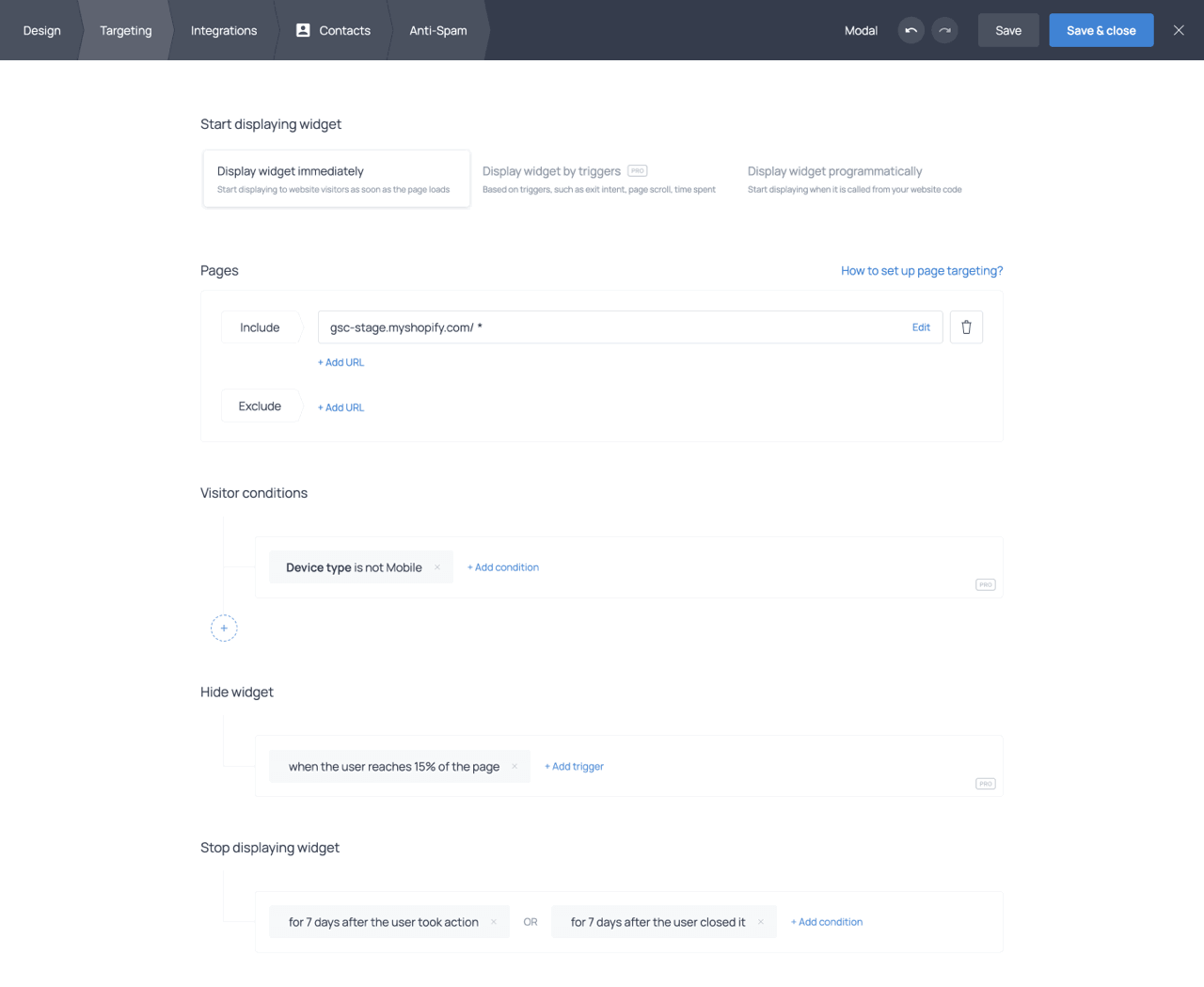
The Targeting tab with several Pro targeting options set up
Google reCAPTCHA
Use reCAPTCHA to block automated bot submissions, preventing fake or invalid email addresses from entering your contact database. reCAPTCHA v3 operates invisibly by analyzing visitor behavior without asking users to complete any challenge. reCAPTCHA is enabled at the widget level with a single toggle; no Google account or API key configuration is required.
A/B testing for widgets
A/B testing lets you compare different widget variants to determine which version drives more engagement. All variants are shown to different but equal groups of visitors and should have the same targeting conditions, ensuring that any difference in performance reflects the widget itself rather than audience or timing factors.
Performance is tracked in the A/B tests tab of the dashboard. The primary metric is the click-through rate (CTR), calculated as the number of actions divided by the number of views. The dashboard also shows the total views, total actions, how long the test has been running, and the percentage difference in performance between variants.
If a widget includes multiple actions (for example, submitting a response and opening a URL), you can hover over the actions and CTR indicators to see a detailed breakdown, including how many times each action was performed and the corresponding CTR for each one.
The test runs continuously until you decide to stop it. When a clear winner emerges, you keep the best-performing variant active and deactivate the others.
Email marketing features
Branding removal
Remove Getsitecontrol branding from your emails. The Getsitecontrol logo and text no longer appear on your email designs, giving your communications a fully on-brand appearance.
Low-cost email sending
Send emails at a lower cost with discounted rates on paid plans. Getsitecontrol uses a pay-as-you-go model across all plans, where emails are purchased in advance and then used for broadcasts or automations. Pro grants you a 20% discount on email costs, and Pro Max a 30% discount.
Import HTML email template
Import a custom email template in HTML or ZIP format when creating a broadcast or automation email. This allows you to use an email created outside the platform instead of building from scratch or using the platform’s templates. This is useful if you already have a fully designed email and want to use it in your campaign.
Broadcast sending modes
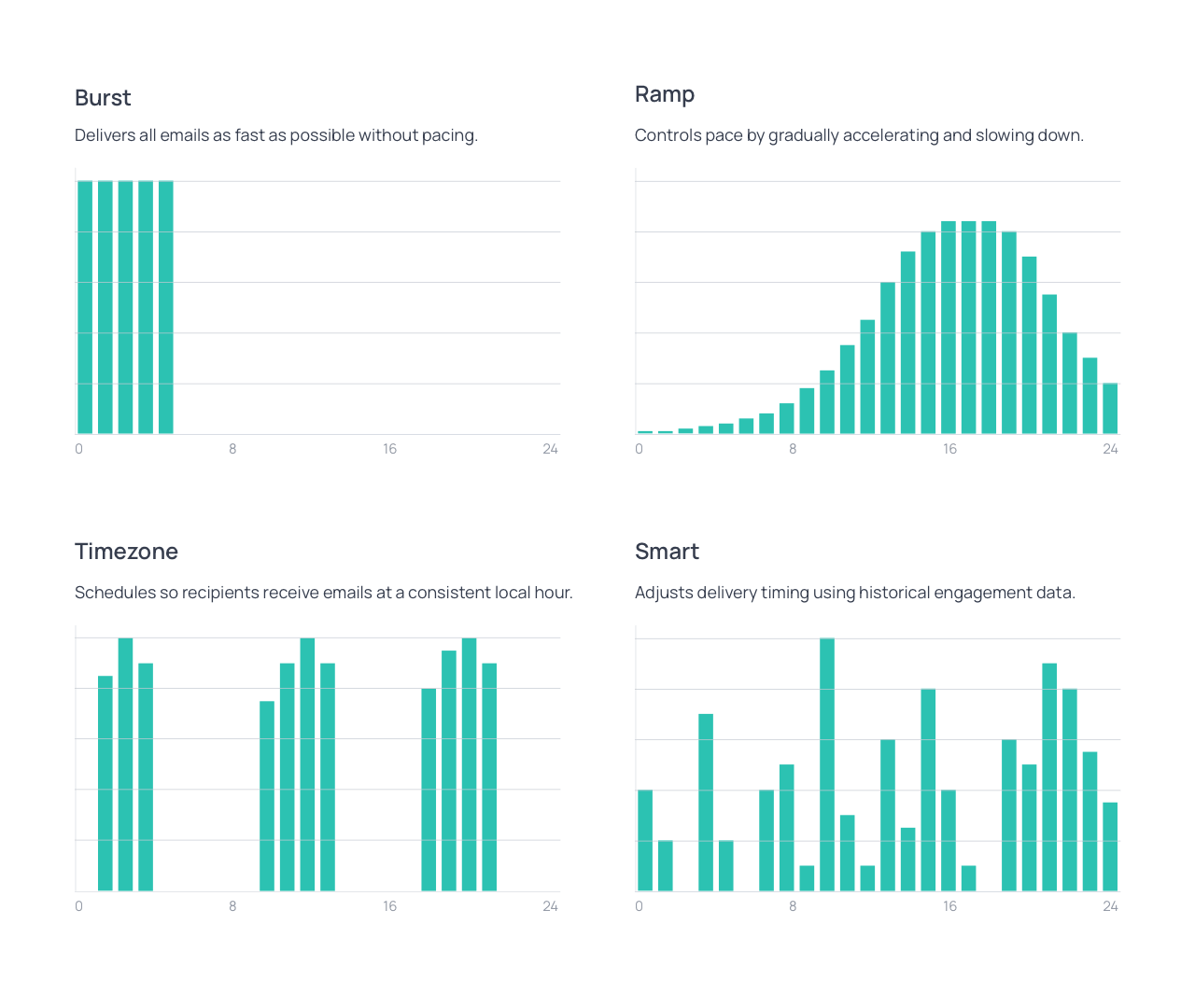
On the free plan, broadcasts are sent using Burst mode, which delivers all emails at the maximum available speed with no pacing. Paid plans introduce additional sending modes designed for different campaign goals and audience types, as well as a Traffic balancing feature for Burst.
Ramp
Ramp gradually increases and then decreases the sending speed over a configurable delivery window of 12, 24, 36, or 48 hours. This creates a more natural sending pattern and is a safer option for everyday sending. It is particularly useful for larger audiences, lists with mixed engagement levels, or new sending domains that are still building their reputation.
Timezone
Timezone delivers emails at the same scheduled hour in each recipient’s local time zone. The broadcast is distributed over a 24-hour window so that, for example, a campaign set for 10 AM reaches every contact at 10 AM in their local time. This mode works well for time-sensitive promotions or newsletters that need to feel relevant regardless of where subscribers are located.
Smart
Smart sends each email at the time when the recipient is most likely to engage, based on their past interaction data. The delivery window can be set to 4, 8, 12, or 24 hours. This mode is best suited for campaigns targeting warm or highly engaged audiences where maximizing open and click rates is the priority.
Traffic balancing (Burst)
On paid plans, Burst mode includes a Traffic balancing feature. When enabled, it distributes recipients across engagement levels, starting with the most engaged contacts and gradually including less engaged ones. It also spreads delivery across major mailbox providers such as Gmail, Yahoo, and Outlook, reducing sudden spikes in traffic that can trigger spam filters.
A/B testing for broadcasts
A/B testing for broadcasts lets you compare up to three versions of an email and automatically send the best-performing one to the rest of your audience. A portion of the selected audience receives each variant first, and after a defined evaluation period, the winning version is delivered to everyone else. All tests are sent using Burst mode with Traffic balancing enabled to safeguard deliverability.
Variants can differ in any part of the email, from subject line and sender details to layout, content, and calls to action. This allows you to test both what affects opening and what drives engagement after.
What sets this feature apart is how performance is evaluated. The system automatically selects the most relevant metric based on what you’re testing. If you change only inbox elements like the subject line, it focuses on open rate. If you change the email content, it evaluates the click rate. When both are involved, it uses a combined engagement score, giving more weight to clicks. This ensures each test is judged using the metric that actually reflects its goal.
Once the emails have been sent to the test audience and the selected evaluation period has passed, the system identifies the top-performing variant and sends it to the remaining audience.
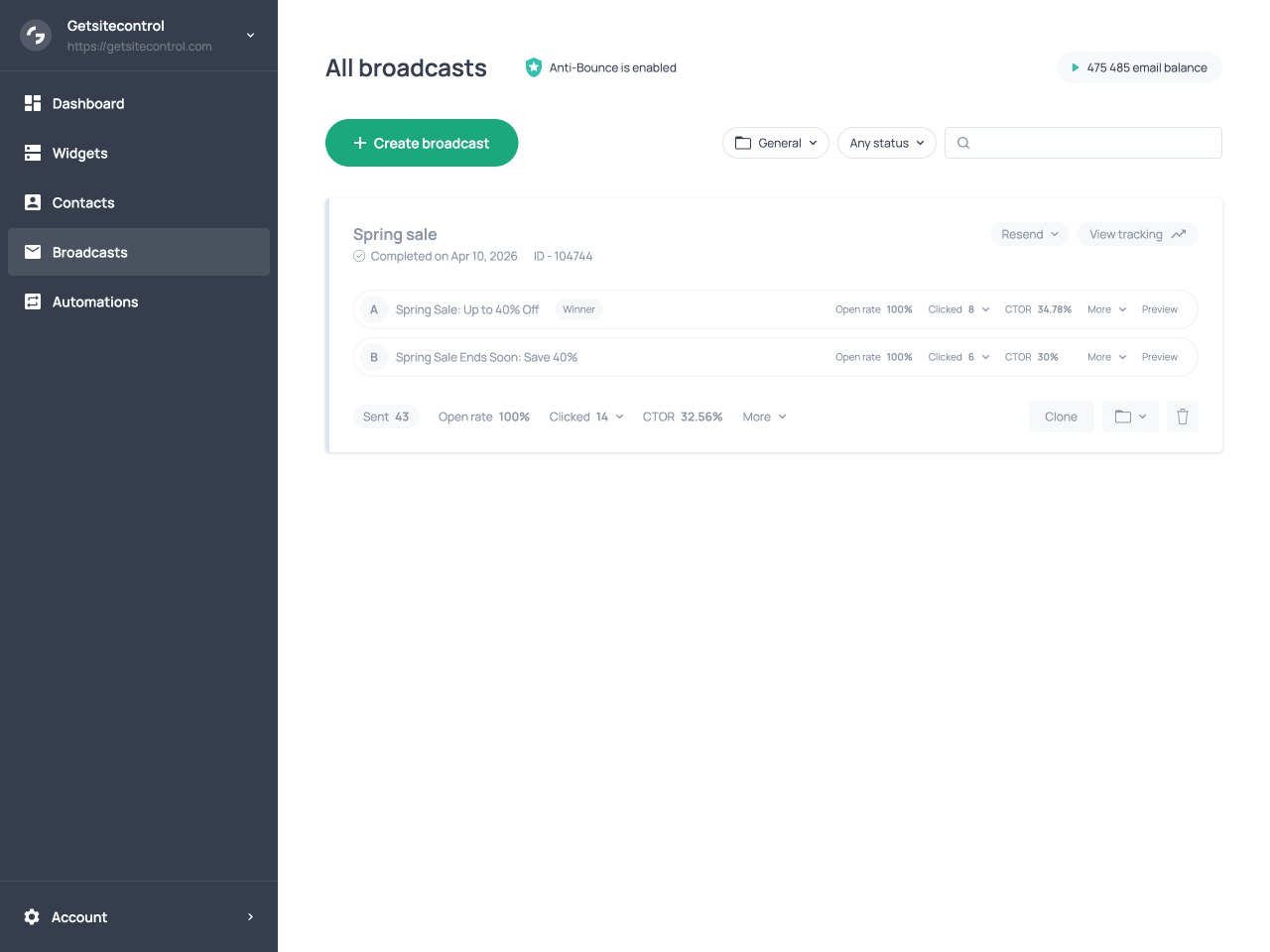
Broadcast A/B test with variants, their performance metrics, and the general statistics
Unique coupon codes (Shopify)
Generate unique, single-use coupon codes for individual contacts and include them in broadcast emails and automation emails. Because each code can only be used once, this prevents code sharing, allows you to track which customers converted from a specific campaign, and reduces discount abuse. Coupon codes are generated automatically through the Coupon element in the email editor, with no additional setup required on the Shopify side.
More features
Multiple websites
On paid plans, you can add multiple websites to a single subscription, with each site billed separately. Each website is treated as its own environment, allowing you to manage widgets and email settings independently. This means you can create and display different widgets on each site, rather than reusing the same ones across all of them. You can also configure email settings per site, including registering a sending domain and customizing UTM tag settings for tracking email clicks in external tools.
Contact Quality score
The Quality score classifies every email address in your contact database into one of eight categories based on its type, reliability, and engagement potential. The score is assigned automatically and cannot be modified manually.
| Score | Description |
|---|---|
| Corporate prime (Corp+) | A high-quality business email, likely belonging to a decision-maker or valuable contact. |
| Corporate basic (Corp) | A business email from a company domain, but associated with a lower-level role or a generic inbox such as info@ or support@. |
| Personal prime (Pers+) | A valid personal email with signals of a real, engaged individual. |
| Personal basic (Pers) | A personal email with low intent signals, generic naming conventions, or weak engagement history. |
| Academic (Edu) | An email from an educational institution, such as a university, school, or research organization. |
| Government (Gov) | An email associated with a government or public sector organization. |
| Disposable (Temp) | A temporary or throwaway email address, typically short-lived and unreliable for long-term engagement. |
| Untrusted (Risk) | A masked, relay, invalid, or unclear email source with low reliability. |
Where it appears
Each contact’s quality score is displayed as a color-coded label in the contact list alongside their email address, subscription status, and engagement metrics. The Dashboard tab also includes a Quality breakdown chart, giving you an at-a-glance distribution of all eight score categories across your contact database. This makes it easy to spot patterns; for example, if a significant share of your list consists of disposable or untrusted addresses, or if it is mostly made up of personal or corporate contacts.
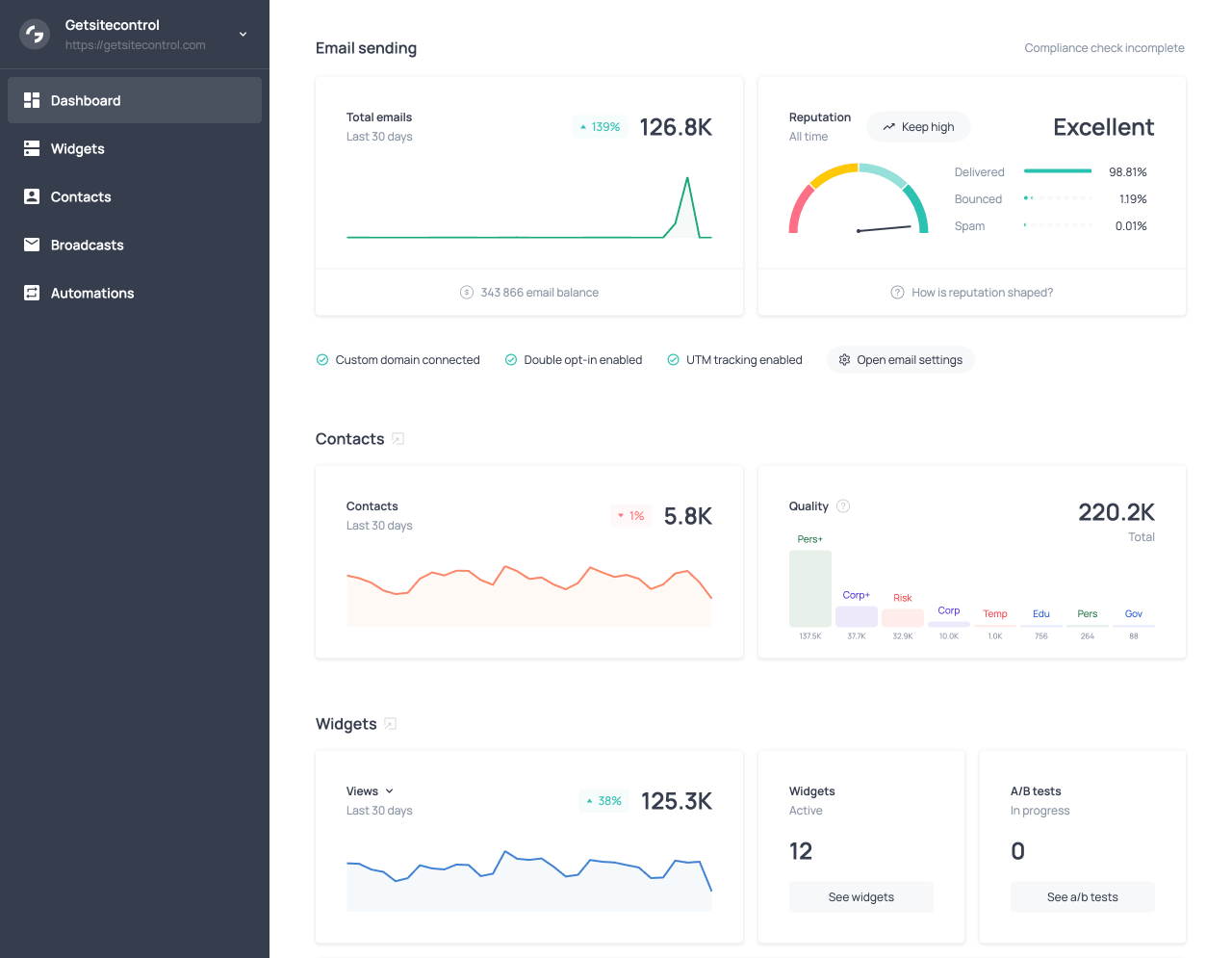
The contact Quality chart in the Dashboard tab
How to use it
Quality can be used as a filter anywhere audience segmentation is available, including the Contacts tab, broadcast recipient selection, automation filters, and when creating segments. This lets you tailor your messaging based on the reliability and engagement potential of your contacts.
Practical applications include filtering out disposable and untrusted contacts before a broadcast to protect your sender reputation, creating a segment of corporate prime and personal prime contacts for high-value campaigns, or analyzing the composition of contacts collected through specific forms or campaigns.
In addition to the built-in contact Quality score available on paid plans in Getsitecontrol, we also offer a free standalone Email quality checker that allows you to verify contacts online without registration.
Summary of Pro features
| Feature | What you get |
|---|---|
| Branding removal (widgets & emails) | Remove Getsitecontrol branding for a fully white-labeled experience. |
| CSS editor | Gain full control over widget design with custom CSS. |
| Skip logic and branching | Create dynamic forms that adapt based on user responses. |
| Advanced targeting | Show widgets to the right audience using behavior, device, location, and more. |
| Google reCAPTCHA | Block bots and protect your email list from spam submissions. |
| A/B testing for widgets | Compare widget variants and optimize performance based on real data. |
| Low-cost email sending | Send emails at a lower cost with discounted rates: 20% off on Pro and 30% off on Pro Max. |
| Import HTML email templates | Use fully designed emails created outside the platform. |
| Broadcast sending modes | Choose how your emails are sent with Ramp, Timezone, and Smart modes, and use Traffic balancing in Burst to safeguard deliverability. |
| A/B testing for broadcasts | Test email variants and automatically send the best-performing version. |
| Unique coupon codes (Shopify) | Generate single-use codes per contact to prevent abuse and track conversions. |
| Multiple websites | Add multiple sites to one subscription and manage widgets and email settings separately for each. |
| Contact Quality score | Classify contacts by reliability and engagement potential for better segmentation. |